![CV_logo_horizontal_outline COPY.png]](https://support.cannavigia.com/hs-fs/hubfs/CV_logo_horizontal_outline%20COPY.png?height=40&name=CV_logo_horizontal_outline%20COPY.png)
2.1 Create delivery points
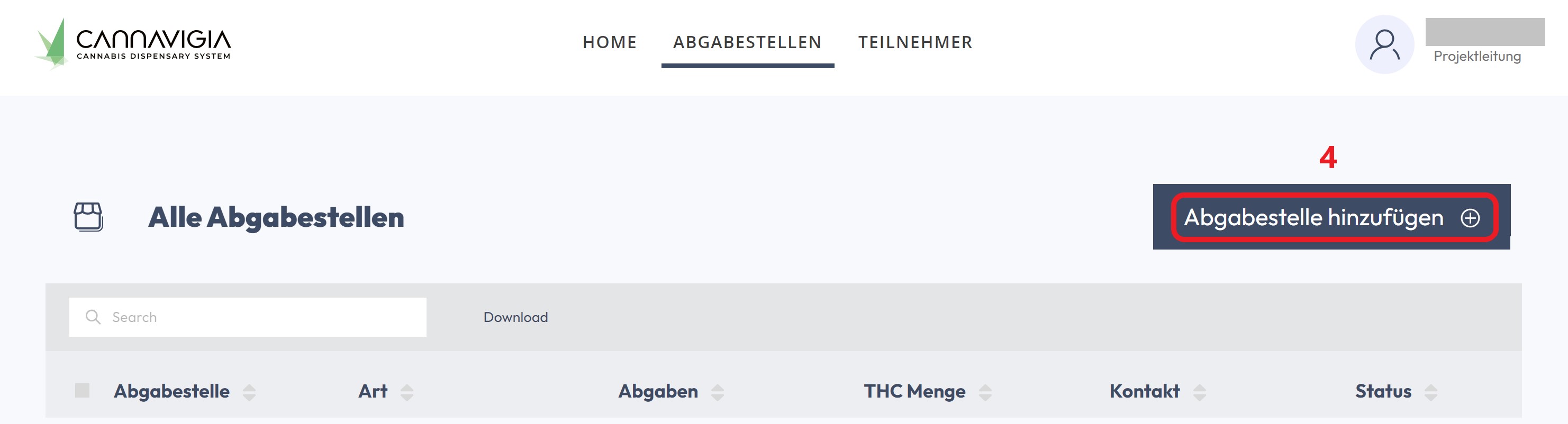
2.1.1 "Home" (1) or "Drop-off Points" (2) > "Add" (3) or "Add Drop-off Point" (4)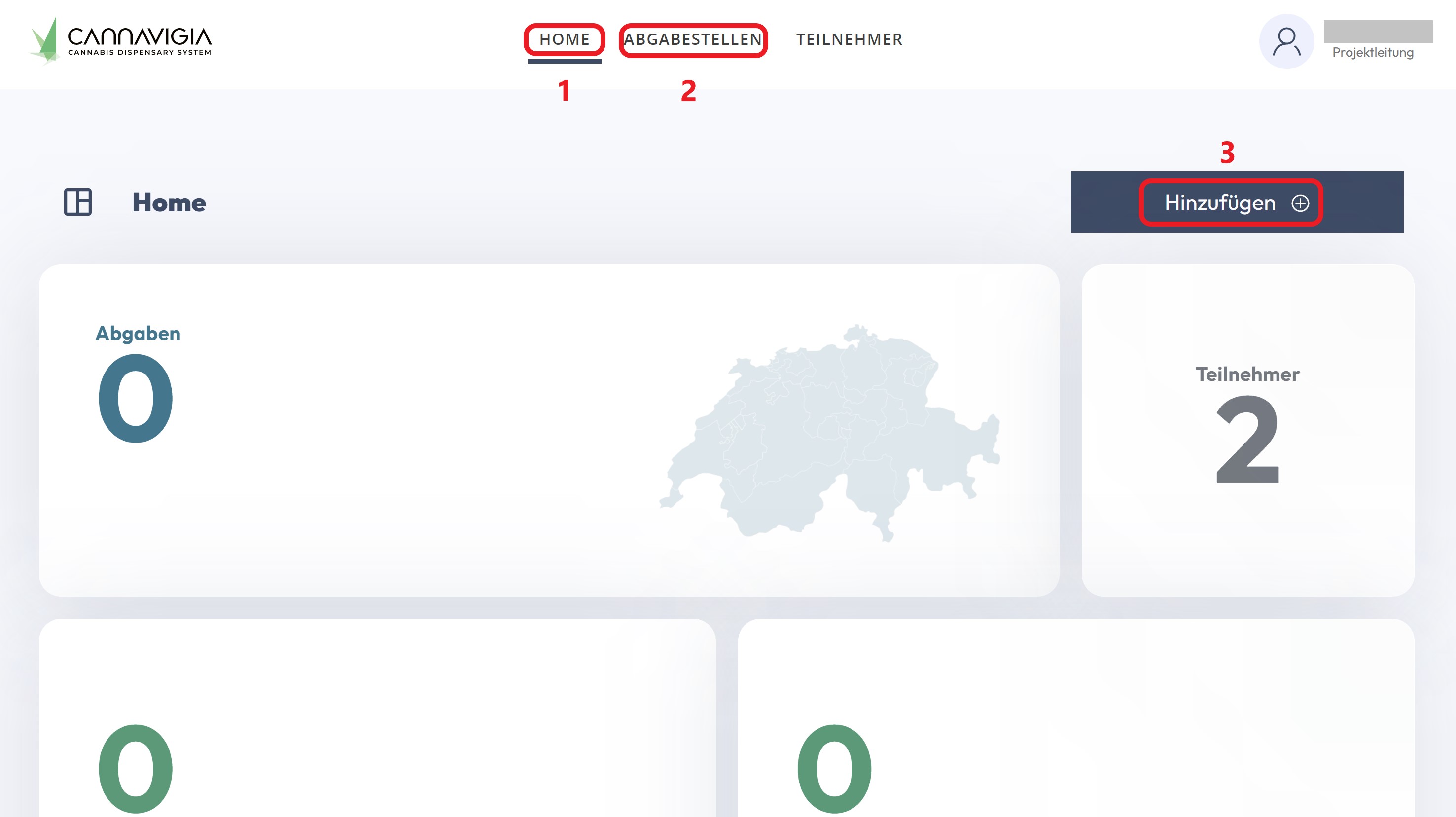
2.1.2 Fill in fields in "New Delivery Point" > "Save"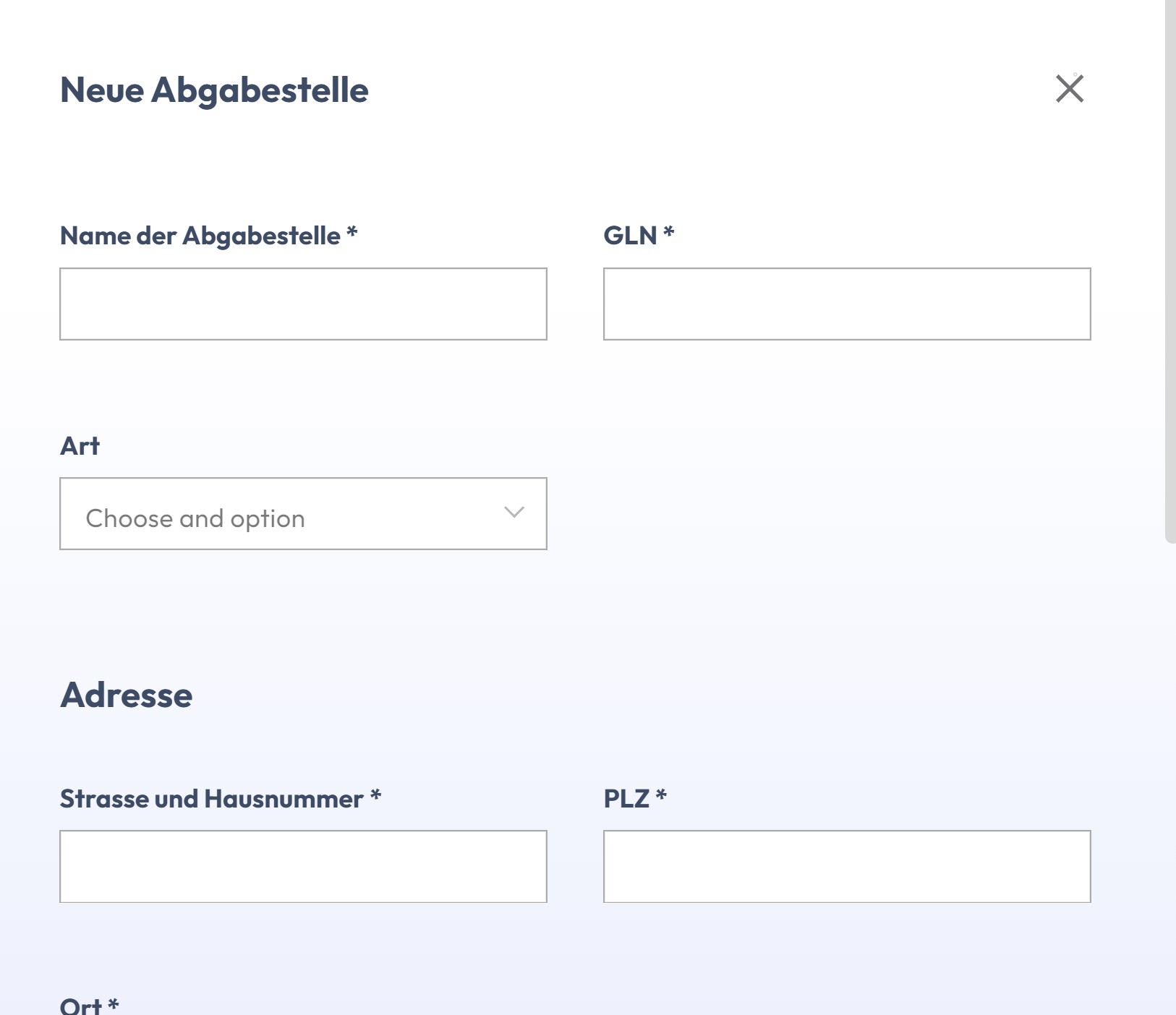
2.1.3 You can find the new drop-off point in the "Drop-off Points" tab in the "All Drop-off Points" list.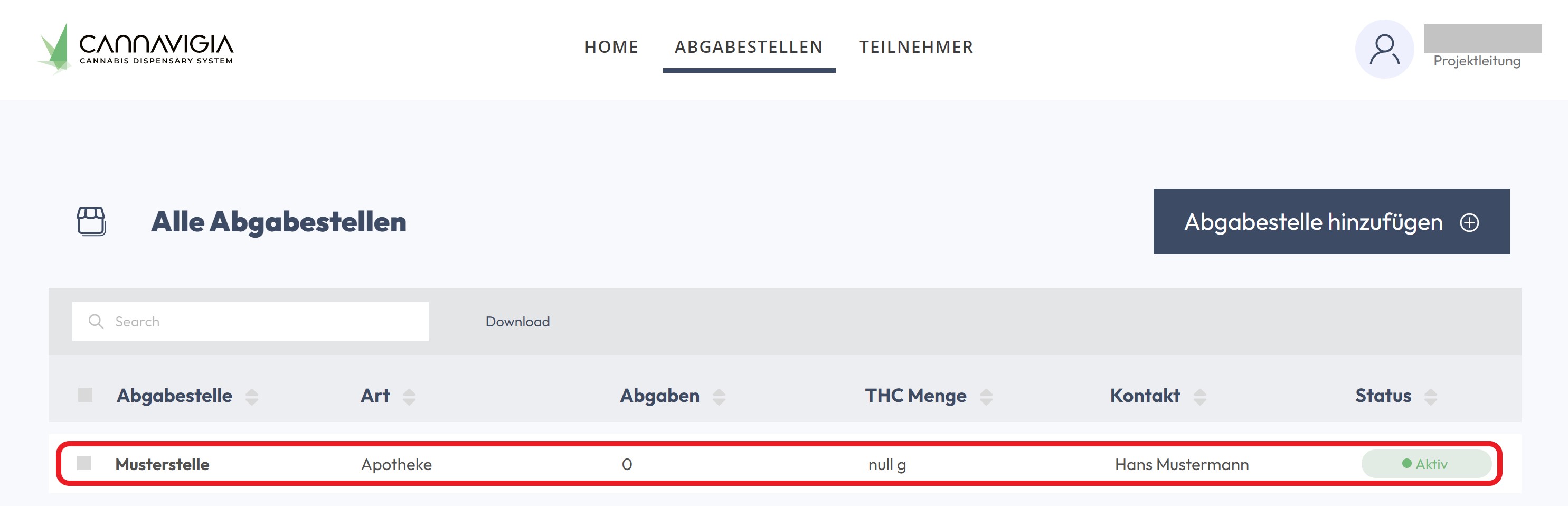
2.2 Editing Delivery Points
2.2.1 Search for "Drop-off Points" > drop-off point to be processed in the "All Drop-off Points" list > click on the name of the drop-off point 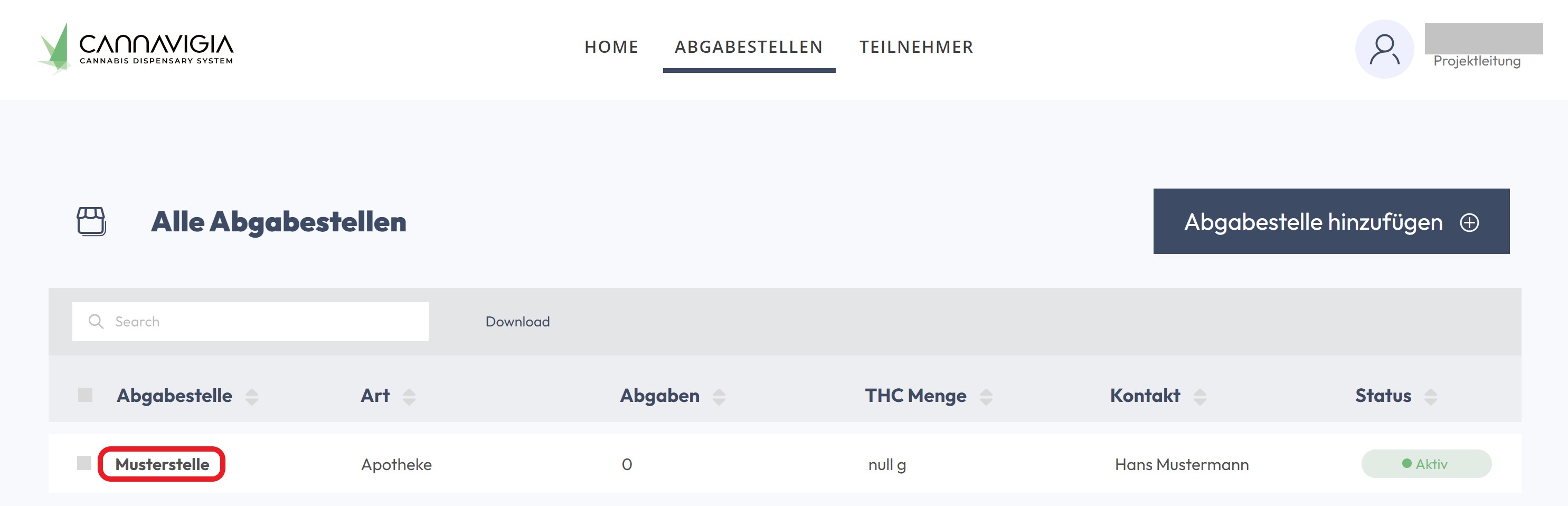
2.2.2 Click "Edit"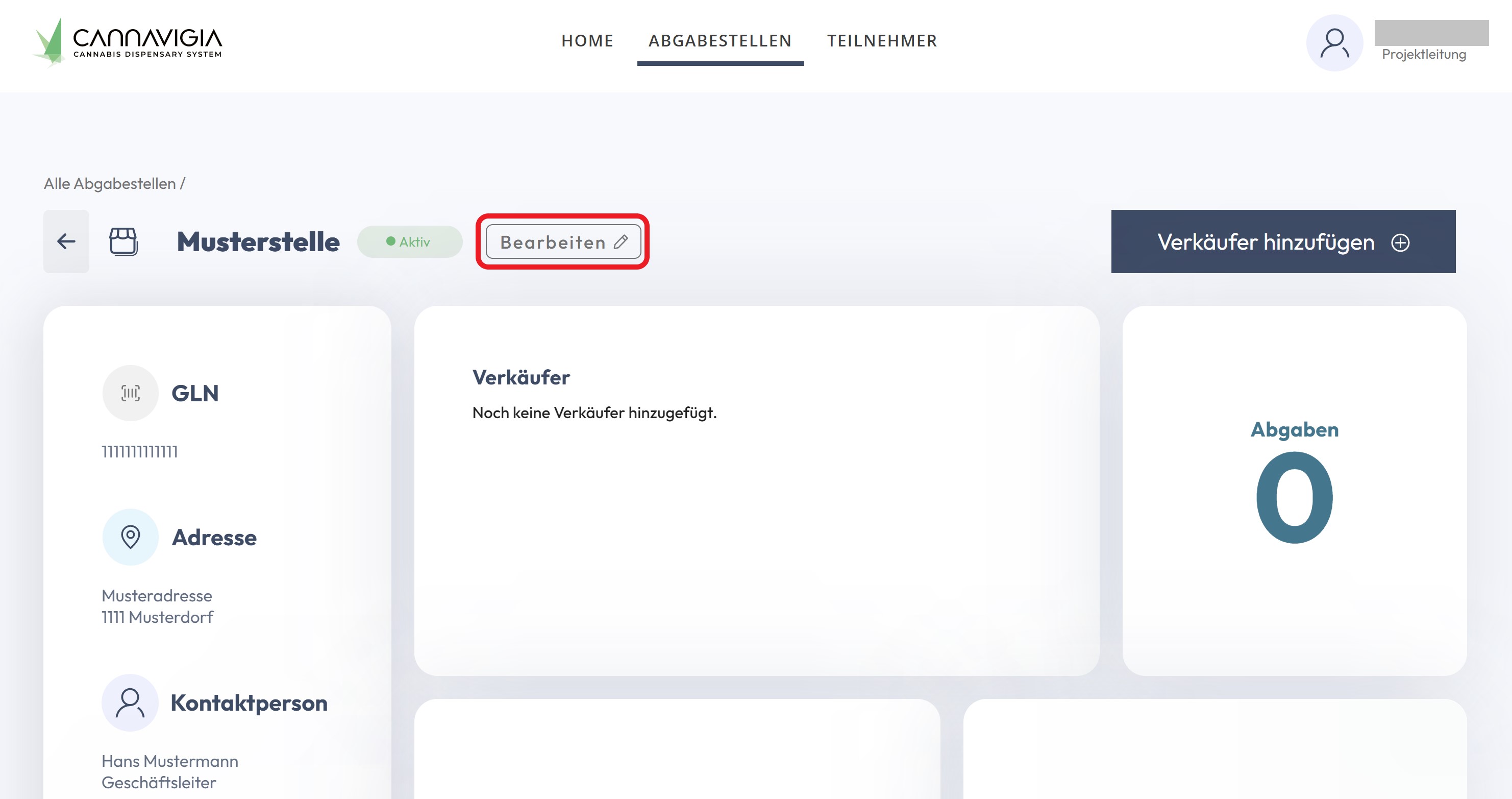
2.2.3 Edit information > Save
⚠️ Changing the status of a drop-off point
If the status of a drop-off point is set to "inactive", no new sellers can be created.
Sellers can still log in to view data, but no goods receipts can be booked or taxes can be made to participants.
So only set the status of a dispensing point to "inactive" if you want it to be excluded from the project.
2.3 Create a seller account
2.3.1 "Drop-off locations" > click on the selected drop-off point > "Add seller"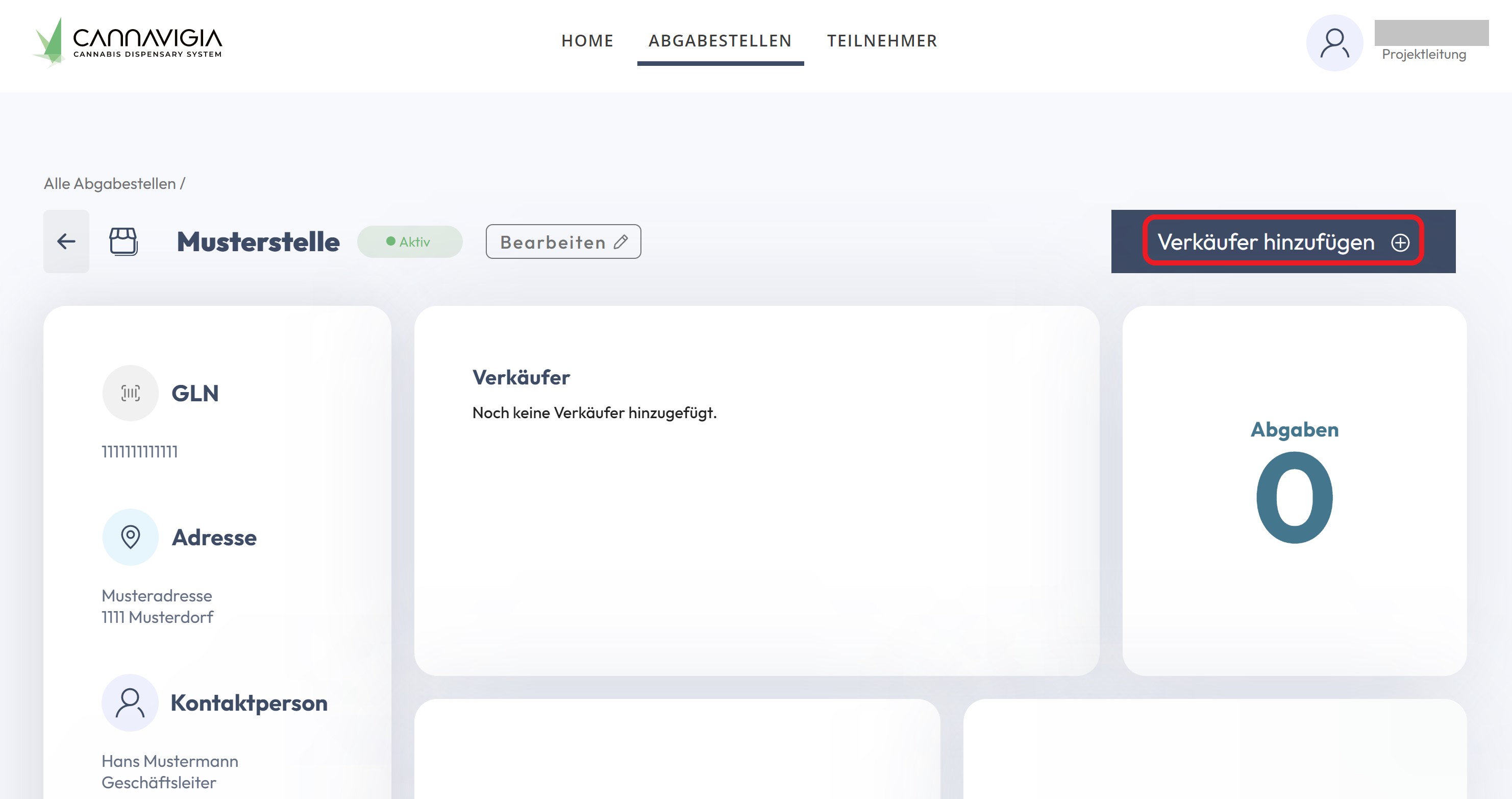
2.3.2 Enter information about the new seller > Save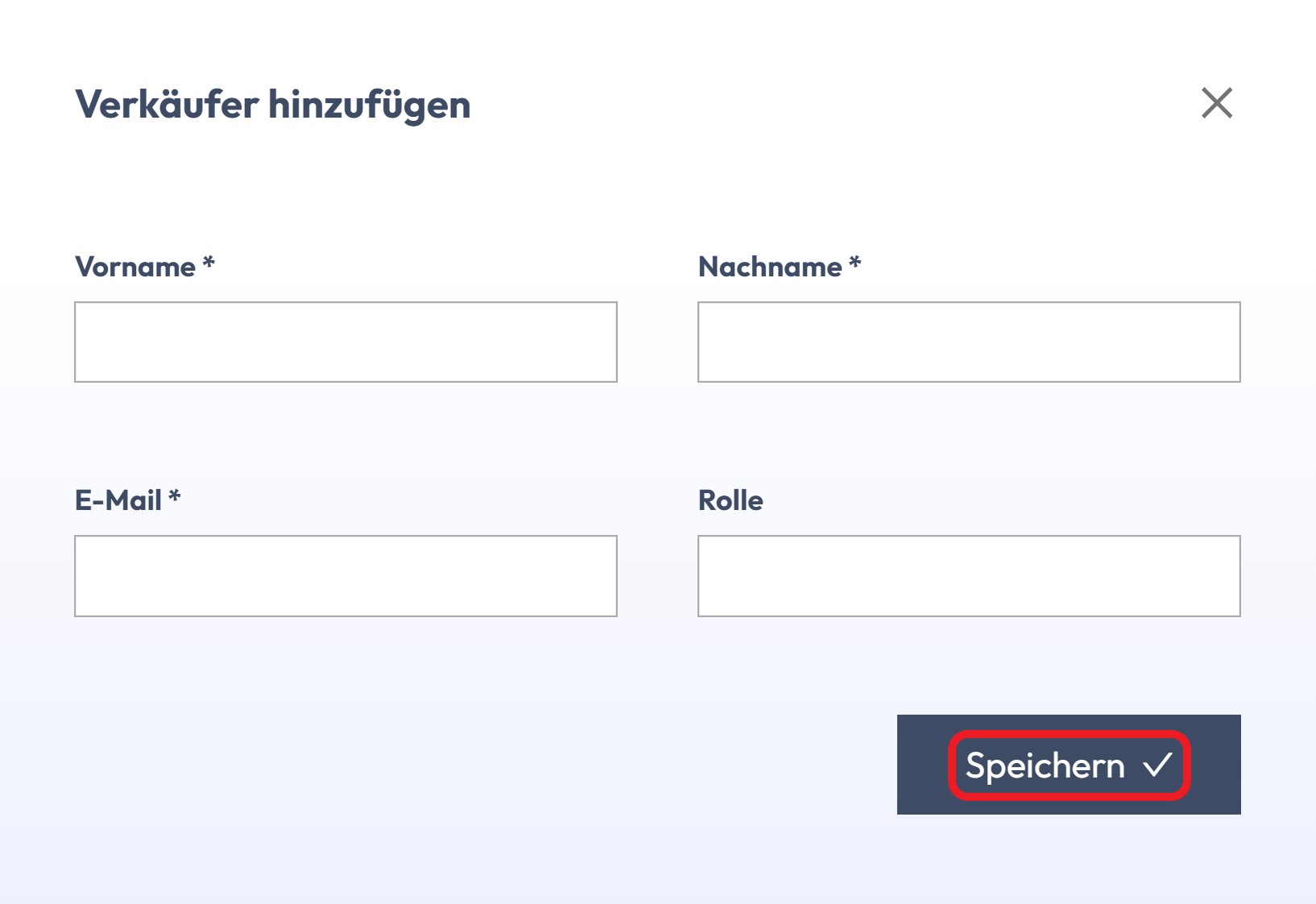
2.3.3 You can find the newly registered seller in the profile of the respective drop-off point in the "Sellers" section. 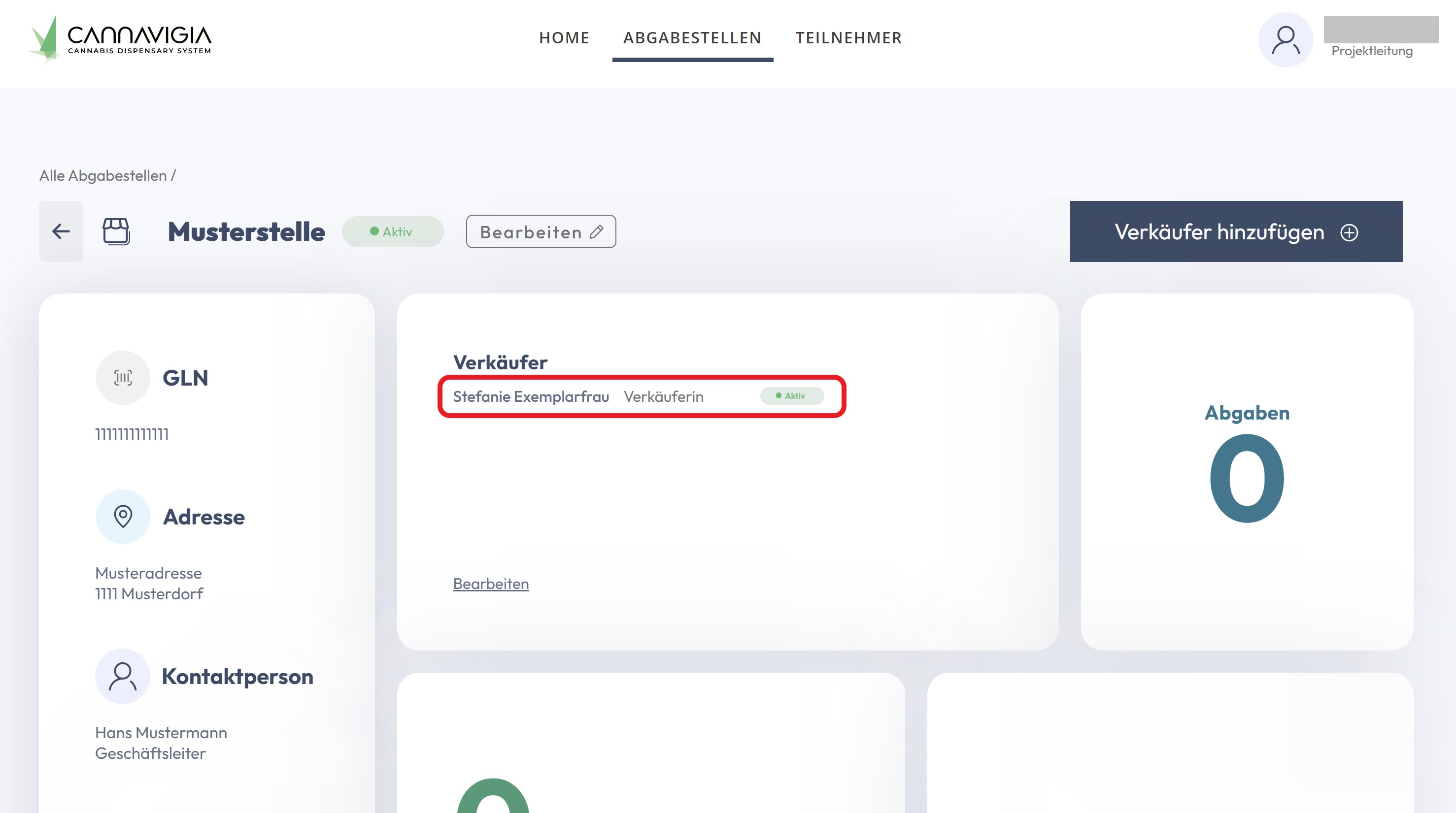
2.4 Edit Seller
2.4.1 View the drop-off point profile > "Seller" > "Edit"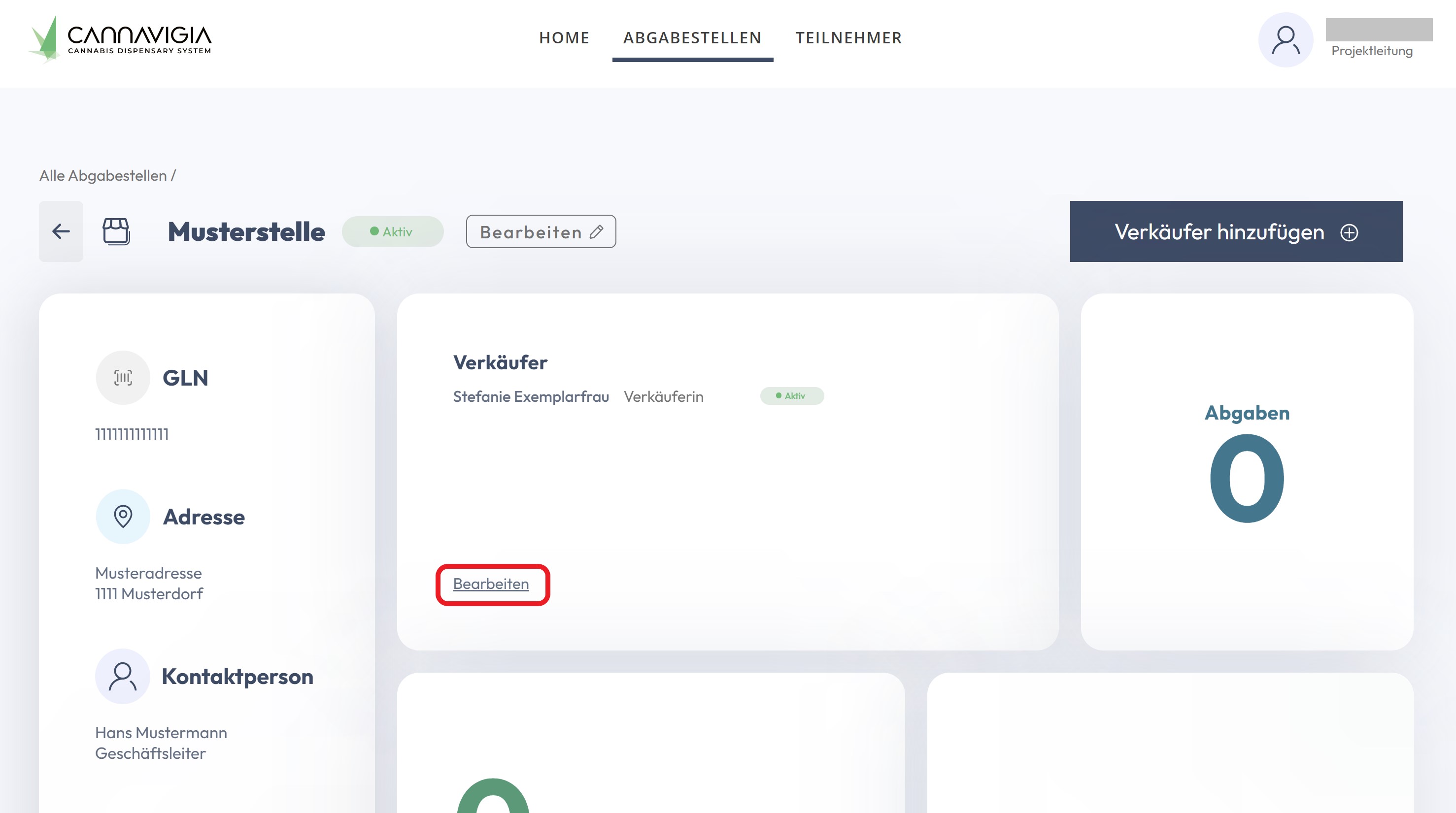
2.4.2 Edit Seller > in the Select Seller field, Select Seller to Edit, > Edit Information, > Save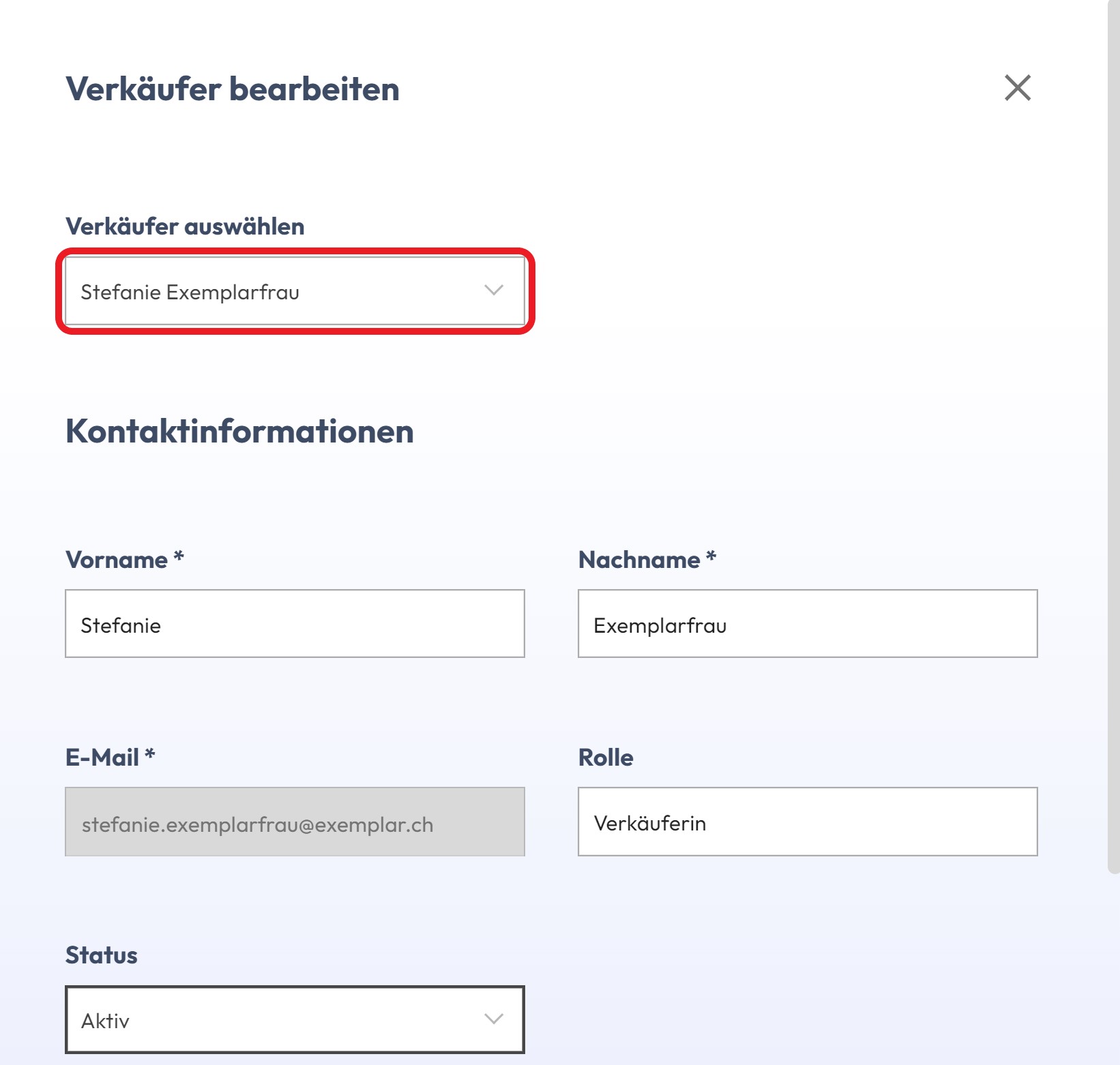
⚠️ Change a seller's status
If the status of a seller is set to "inactive", the corresponding person can no longer log in.