![CV_logo_horizontal_outline COPY.png]](https://support.cannavigia.com/hs-fs/hubfs/CV_logo_horizontal_outline%20COPY.png?height=40&name=CV_logo_horizontal_outline%20COPY.png)
Task Management allows you to schedule work, assign responsibilities and track progress directly in Cannavigia. When you complete a task, the system automatically records the completion for every linked entity, such as a batch, area or piece of equipment.
Use Task Management to plan daily activities, set up recurring cleaning and maintenance routines, and keep a complete history of who performed the work and when.
Select a topic to go directly to the information you need:
- Task Management Overview
- Plan a Task
- Set Up Recurring Tasks
- Use Task Templates
- Start and Complete a Task
- Cancel or Reopen a Task
- Find Tasks and Track Overdue Work
- Compliance Records and Audit Trail
- Maintenance and Calibration Examples
- Frequently Asked Questions
Task Management Overview
Open All Tasks to view and manage operational work across your facility. You can also access linked tasks directly from a batch, area or piece of equipment.
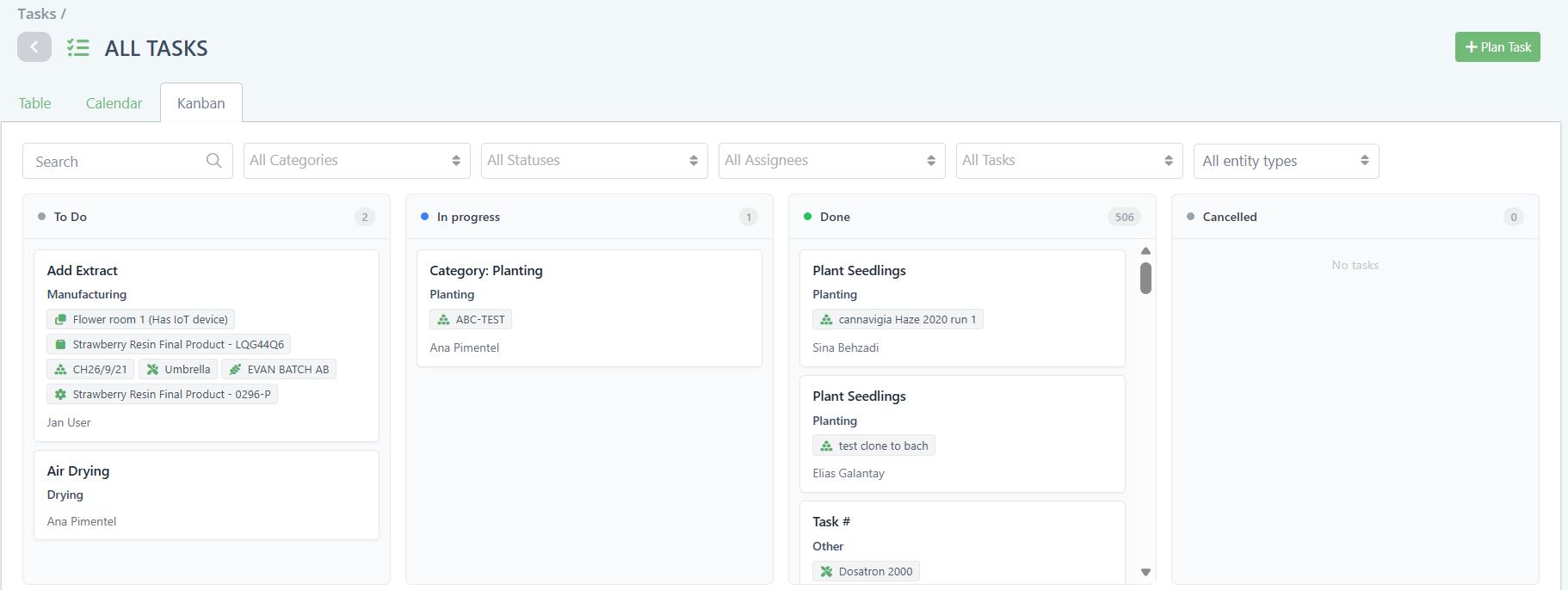
Each task has one of five statuses:
|
Status |
Meaning |
|---|---|
|
To Do |
The task is planned and has not been started. |
|
In Progress |
Work on the task has started. |
|
Done |
The work has been completed and recorded. |
|
Overdue |
The task is past its due-date |
|
Cancelled |
The work is no longer required. A cancellation reason is recorded. |
Note: Changing a task's status requires Edit access. Anyone with Edit access can change the status of a task, including tasks assigned to another person.
Plan a Task
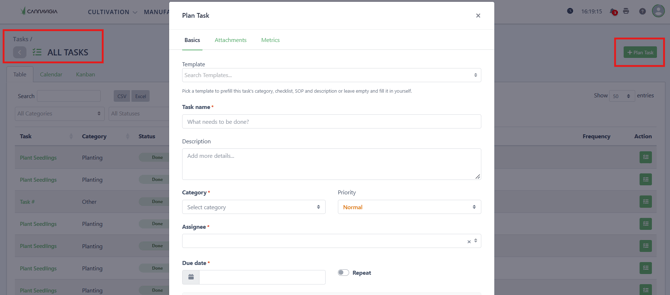
To create a task, follow these steps:
- Open Tasks.
- Click Plan Task.
- Enter the required information and add any instructions or supporting documents.
- Click Save. The task is created with the status To Do.
Alternatively, open a batch, area or piece of equipment and create the task from its task table. The entity is linked automatically.
Task Details
|
Field |
Required |
What to enter |
|---|---|---|
|
Task Name |
Yes |
A short name describing the work, for example “Clean trim machine”. |
|
Description |
No |
Instructions or additional details. |
|
Category |
Yes |
Select the category that matches the work. |
|
Perform on |
No |
Link one or more batches, areas, equipment, containers, productions or contacts. |
|
Assignee |
Yes |
Select the person responsible for the task. |
|
Due date and time |
Yes |
Specify when the work should be done. |
|
Estimated effort (duration) |
No |
Enter how long the work is expected to take. |
|
Recurrence |
No |
Set a repeating schedule. |
|
Checklist |
No |
Add the steps that must be checked before completion. |
|
Documents |
No |
Attach SOPs, work instructions or other supporting files. |
The available categories are Cleaning, Drying, Harvest Processing, Manufacturing, Cultivation (Planting, Plant Care, Soil Cultivation and Irrigation), Maintenance, Waste Management and Other.
Link Entities
In Perform on, select every entity the work applies to. For example, one cleaning task can cover both a drying room and the trim machine located inside it.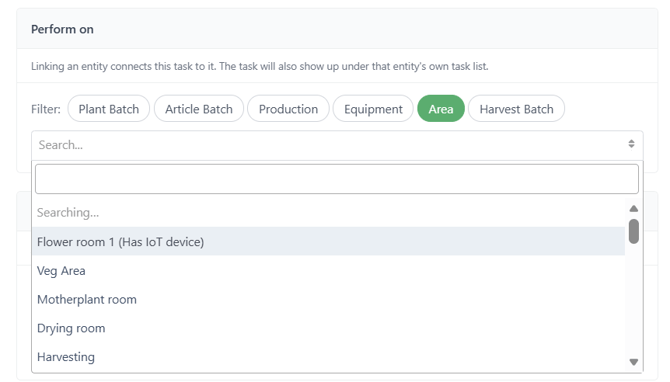
For administrative work, such as reviewing an SOP, you can leave the task unlinked.
Add a Checklist and Documents
Add checklist items in the order the steps should be performed. Every item must be checked before the task can be completed.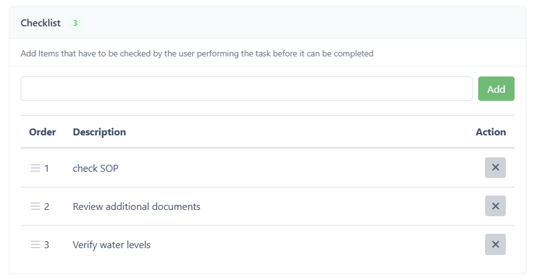
Attach the documents needed to carry out the work so they are available when the task is opened. You can also add comments and attachments, such as photos or certificates, to document the work.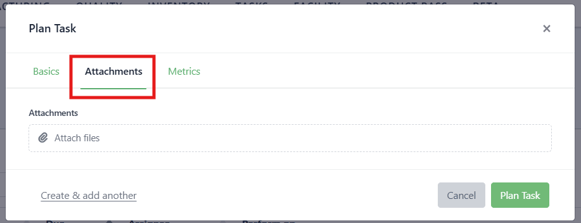
Set Up Recurring Tasks
Use recurring tasks for work that follows a fixed schedule, such as watering every three hours, monthly calibration or yearly equipment requalification.
- Open Plan Task and enter the task details.
- Set the Recurrence for the required schedule.
- Add the checklist and documents needed for each occurrence.
- Click Save.
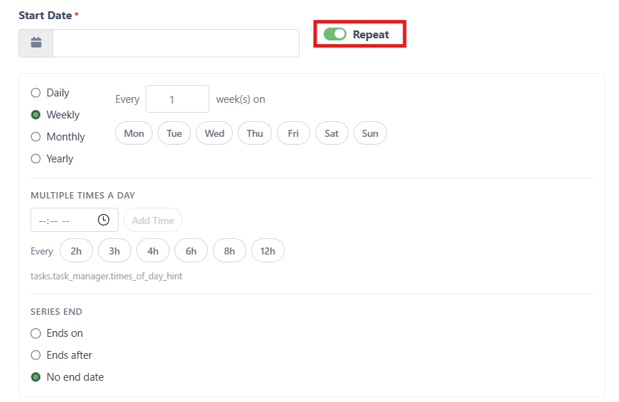
Each occurrence in the series is a separate task. Schedules can include several occurrences per day, for example every three hours from 06:00 to 21:00.
Note: Completing an occurrence late does not shift the next occurrence. The series continues to follow its original schedule. Missed occurrences remain open and overdue until someone completes or cancels them.
Each occurrence receives a fresh, unchecked copy of the checklist. Changes to the checklist on a series apply only to future occurrences.
Tip: You can create several recurring tasks for the same piece of equipment, each with its own interval, such as a daily check, monthly filter change and yearly requalification.
Use Task Templates
Task templates store the details of routine work so you can plan tasks without entering the same information each time.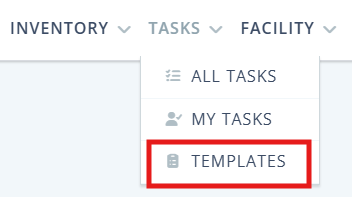
|
Included in the template |
Set when planning the task |
|---|---|
|
Title and description |
Due date and time |
|
Category |
Recurrence, if needed |
|
Linked entities |
|
|
Assignee |
|
|
Estimated duration |
|
|
Checklist |
|
|
Documents |
To plan a task from a template:
- Select Plan Task from template.
- Choose the required template.
- Set the due date and time.
- Set the recurrence if the task should repeat.
- Adjust any prefilled details if needed, for example the assignee.
- Click Save. The task is created with the status To Do.
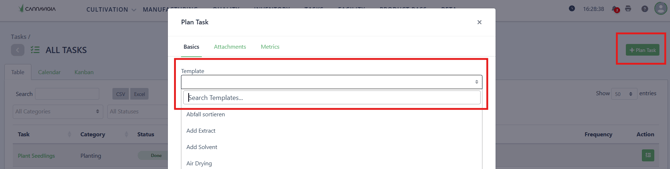
Documents attached to the template are included in every task planned from it.
Note: Editing a template only affects tasks planned from it afterwards. Tasks that have already been created retain their own values.
Start and Complete a Task
To record work on a task:
- Open the task and change the status to In Progress, and your start time is recorded.
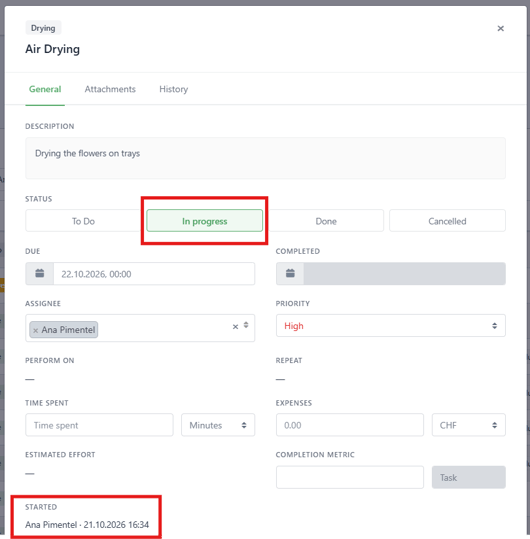
- Follow the instructions and check each checklist item as you complete it.
- Add any relevant comments or attachments, such as a photo or calibration certificate.
- Select Done once the work is finished.
The status changes to Done. The system records who completed the task and when, and creates the compliance record for each linked entity.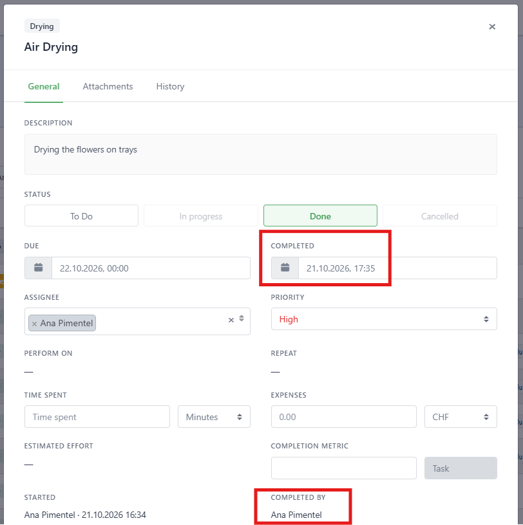
For quick tasks, you can complete the task directly from To Do without starting it first.
Note: Done remains disabled while any checklist item is unchecked. Each check is recorded with the user's name and the time. Once the task is completed, the checklist is locked.
If you started a task by mistake, you can move it from In Progress back to To Do.
Cancel or Reopen a Task
Cancel a Task
If the work is no longer needed:
- Open the task.
- Cancel the task and enter a reason.
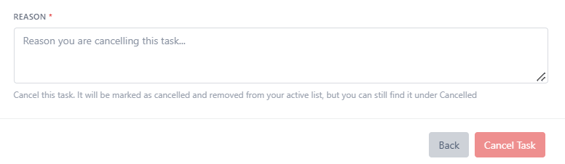
The status changes to Cancelled. The task and its cancellation reason remain in the history and in the task table of each linked entity.
Cancelling a task does not create a compliance log entry. Tasks cannot be deleted; cancel them with a reason to retain a complete record.
Reopen a Task
A Completed or Cancelled task can be reopened. Reopening returns the task to To Do.
When you reopen a completed task:
- Its compliance log entry is marked as reverted.
- The original entry remains visible in the audit trail.
- The checklist is unlocked, and existing checks are retained.
Find Tasks and Track Overdue Work
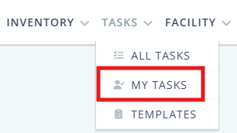
Start your shift in My Tasks to review your assigned work. Use the shared views to see tasks across the facility.
- My Tasks: View your own tasks due today and this week.
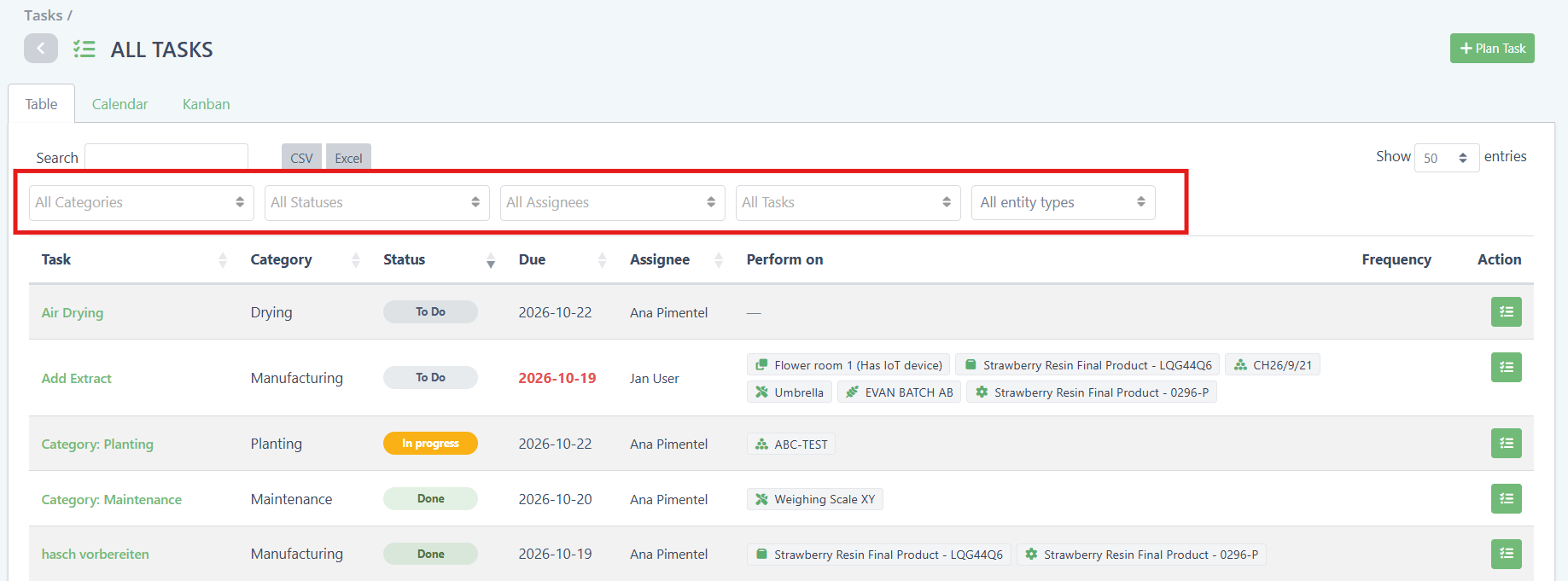
- Table: View all tasks in the facility and filter them by category, assignee or entity.
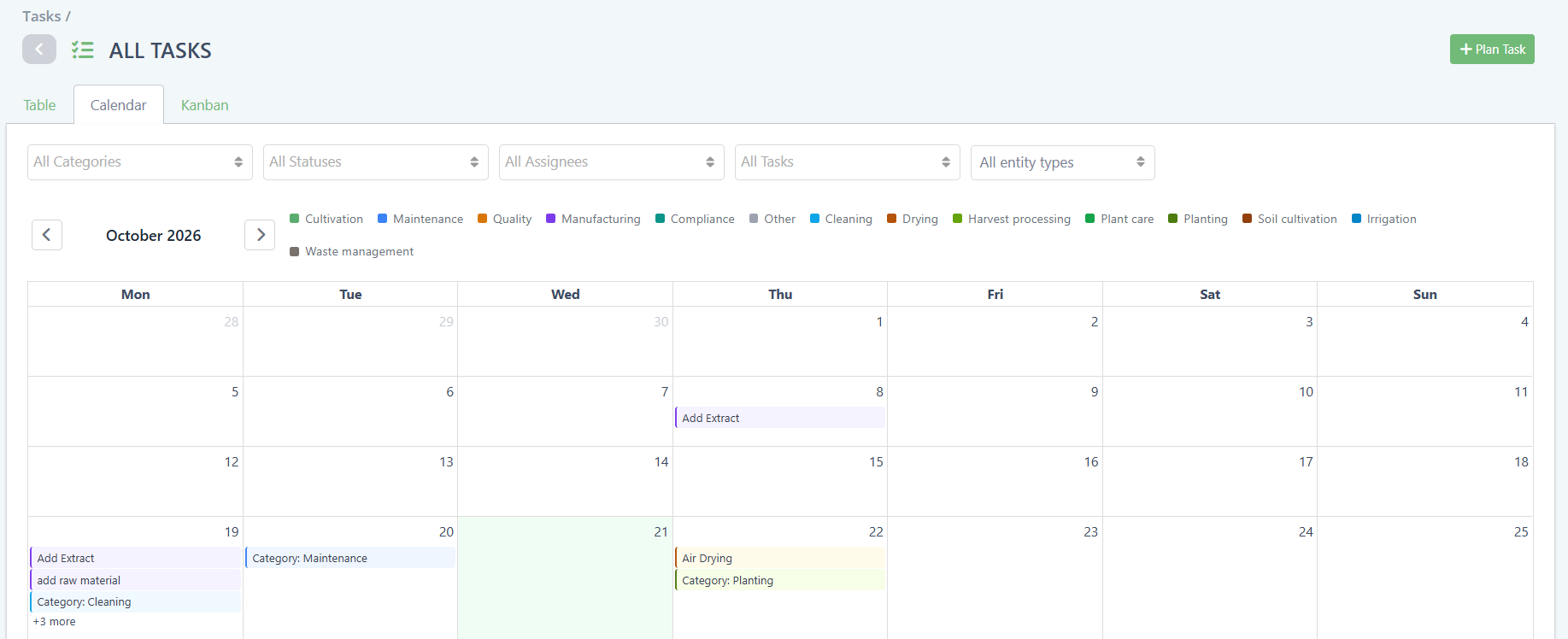
- Calendar: View tasks arranged by their scheduled dates.
- Kanban: View task cards grouped into columns by status. Grab and drop the task cards to change status.
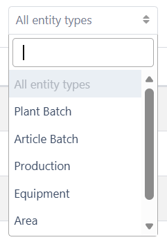
- Entity task table: View all tasks ever linked to a specific entity, regardless of status.
Overdue Tasks
A task is flagged as overdue when its due date and time have passed and its status is still To Do or In Progress.
The flag appears in every view and clears when the task is completed or cancelled. Overdue is flagged with the due date in red, rather than a separate task status.
Recurring tasks remain visible when missed. Each missed occurrence stays open and overdue until it is completed or cancelled.
Tip: Check My Tasks at the start of each shift and review overdue flags regularly. Task reminders and notifications are not yet available.
Compliance Records and Audit Trail
Completing a task automatically creates the compliance log for every linked entity. There is no need to enter the same work a second time.
The record includes the person who completed the task and the completion time, based on their login. No additional signature is required.
Every change to a task is recorded in its audit trail, including:
- Who made the change and when.
- The previous and new values.
- Each checklist item checked, with the user's name and the time.
- Reverted completion entries when completed tasks are reopened.
The audit trail cannot be edited or deleted. Cancelled tasks remain visible with their cancellation reason but create no compliance log.
Correct a Completion Date
If work was completed earlier than it was recorded, a user with the Change completed date permission can correct the date on the completed task.
The audit trail retains the original date, the corrected date, who made the change and when.
Maintenance and Calibration Examples
One Piece of Equipment with Several Intervals
Create a separate recurring task for each maintenance interval and link each task to the same piece of equipment.
For example, the dehumidifier in Drying Room A could have the following tasks, all in the Maintenance category:
|
Task |
Recurrence |
Checklist |
|---|---|---|
|
Visual check of dehumidifier |
Daily at 07:00 |
Check for leaks; check the display for errors. |
|
Replace dehumidifier filter |
Monthly on the 1st at 09:00 |
Remove the old filter; fit the new filter; note the filter batch. |
|
Calibrate humidity sensor |
Every three months at 09:00 |
Compare against a reference hygrometer; adjust; record the deviation. |
|
Annual requalification |
Yearly on 15 January |
Complete the installation, operational and performance qualification checks. |
All four tasks appear in the dehumidifier's task table, each following its own schedule. Set the due time for the yearly task when planning it.
Several Pieces of Equipment with One Interval
If several pieces of equipment are calibrated together, link them to one recurring task:
|
Field |
Example |
|---|---|
|
Title |
Monthly scale calibration |
|
Category |
Maintenance |
|
Perform on |
Scale 01, Scale 02 and Scale 03 |
|
Recurrence |
Monthly, first Monday at 08:00 |
|
Checklist |
Calibrate Scale 01; Calibrate Scale 02; Calibrate Scale 03 |
One task is created each month. All three checklist items must be checked before it can be completed. Completion is recorded on each linked scale.
Tip: If equipment is often serviced on different days, create a separate recurring task for each piece of equipment. With a shared task, one unfinished item prevents the whole task from being completed.
Save either setup as a task template to reuse it when planning work for new equipment.
Frequently Asked Questions
Why can I not select Complete?
The task has at least one unchecked checklist item. Check every item before completing the task.
Can I work on a task assigned to someone else?
Yes. Anyone with Edit access can change a task's status, including tasks assigned to a colleague.
Will I receive a reminder when a task is due?
Not yet. Review My Tasks and overdue flags regularly. Notifications are planned for a later version.
Can I delete a task?
No. Cancel it and enter a reason so the record remains complete.
Do I need to enable Task Management?
No. It is enabled for all customers by default and included in your subscription at no extra cost.
Can I make a task depend on another task?
Dependencies are not available in this version. Dependencies, approvals, notifications and Plans, which provide templates for a whole cultivation cycle, are planned for Task Management V2. Templates for individual tasks are already available.