![CV_logo_horizontal_outline COPY.png]](https://support.cannavigia.com/hs-fs/hubfs/CV_logo_horizontal_outline%20COPY.png?height=40&name=CV_logo_horizontal_outline%20COPY.png)
The Training Center is a centralized platform for managing and recording all training activities within your organization. It helps maintain a comprehensive database of training sessions, supporting compliance with training requirements while enabling efficient tracking of employee development and skill growth.
By documenting workshops, seminars, and online courses, you can monitor participation, evaluate training effectiveness, and identify opportunities for improvement - helping promote continuous learning and high training standards!
Add a New Training
To add a new training to the Cannavigia system, follow these steps:
-
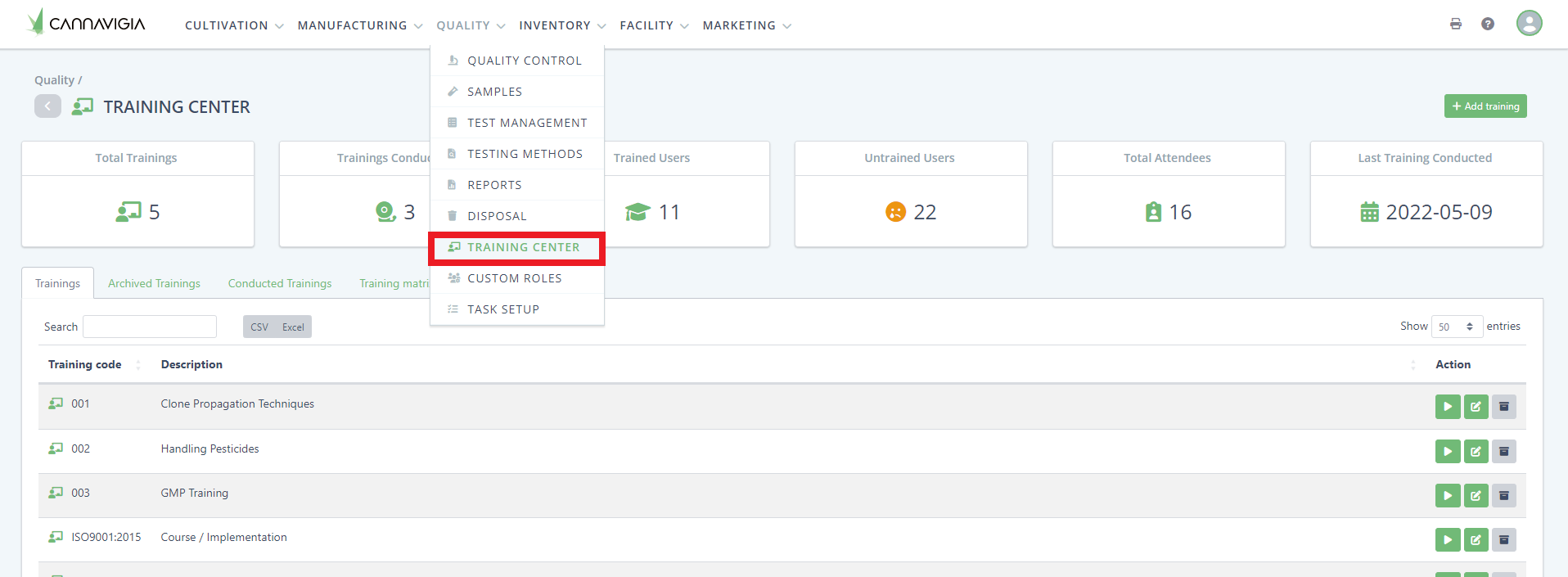
Navigate to the Training Center (Quality > Training Center), click on the green +Add training button
-
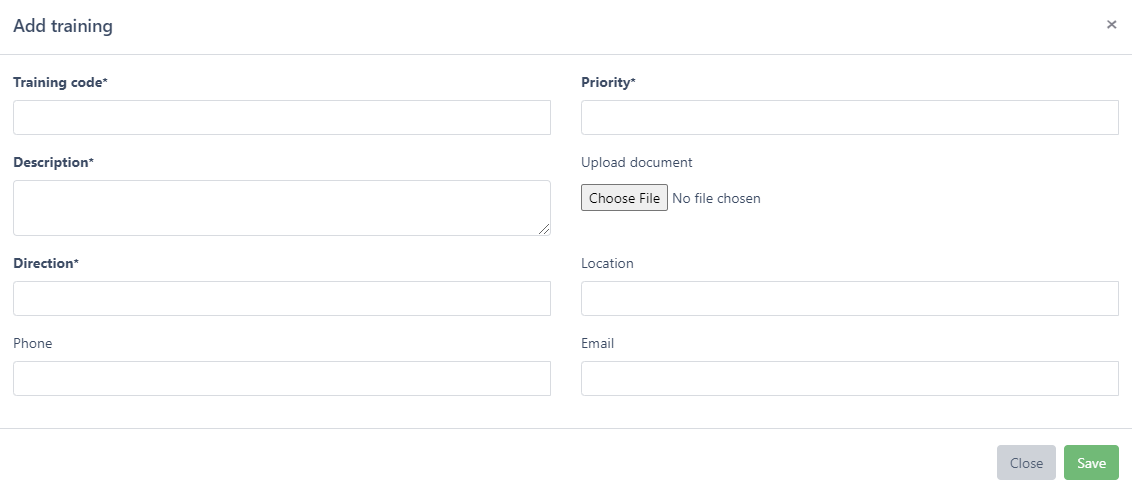
The Add training window will open up
-
Enter a Training code and a Priority for the training
-
Describe the training. We recommend specifying in the name if it is conducted internally or externally
-
Enter the Direction of the training
-
Optionally, you can also enter the Location of the training and the Phone number and email of the organizer of the training
-
Click Save to create your training
Conduct (record) a Training
To record the conducting of a training, follow these steps:
-
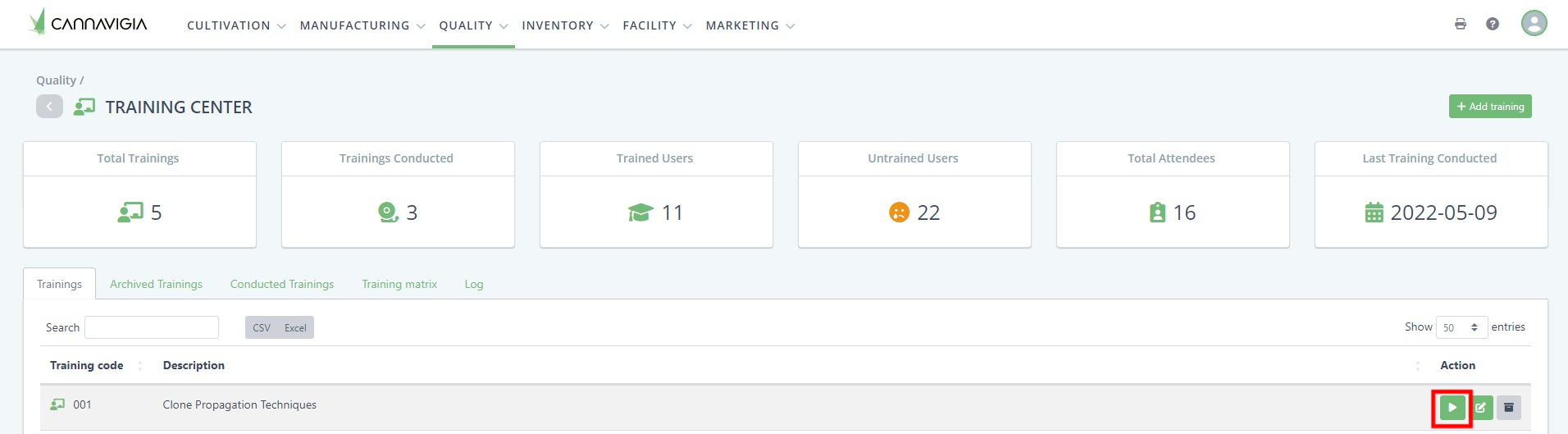
In the Training Center page, click on the green Conduct training button
-
Select the Internal examiner from the drop-down list
-
Enter the Started at and Finished at date
-
If there was also an External examiner present, enter their name and surname
-
Select the name(s) of the Attendees. You can select multiple attendees by clicking on the names of the employee in the drop-down list
-
Click Conduct to log your training
Edit a training
In Quality > Training Center, in the Trainings tab, you can see all your created trainings.
You can edit any of your trainings at any time by following these steps:
-
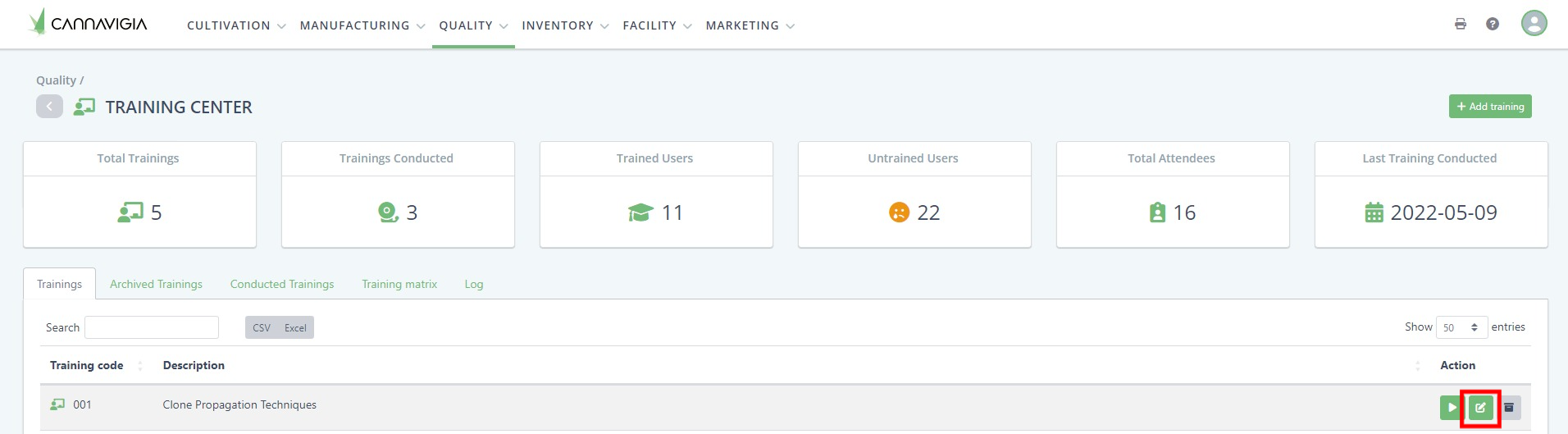
To edit a training, click on the green Edit button
-
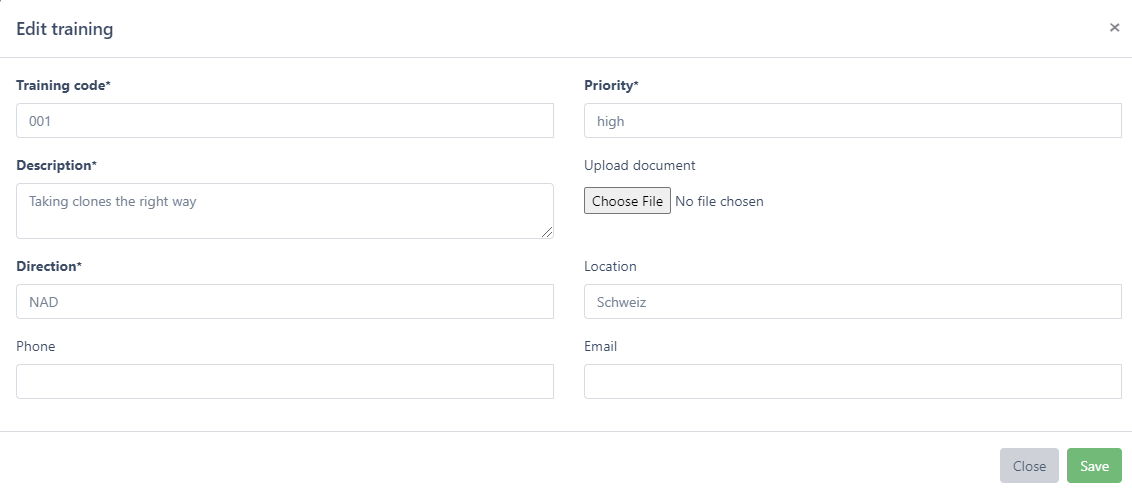
The Edit training window will open with the same fields you entered when creating the training
-
Record the necessary changes or enter any additional information regarding that training
-
Click on the Save button to record your changes and return to the Trainings page
Archive and restore a training session
-
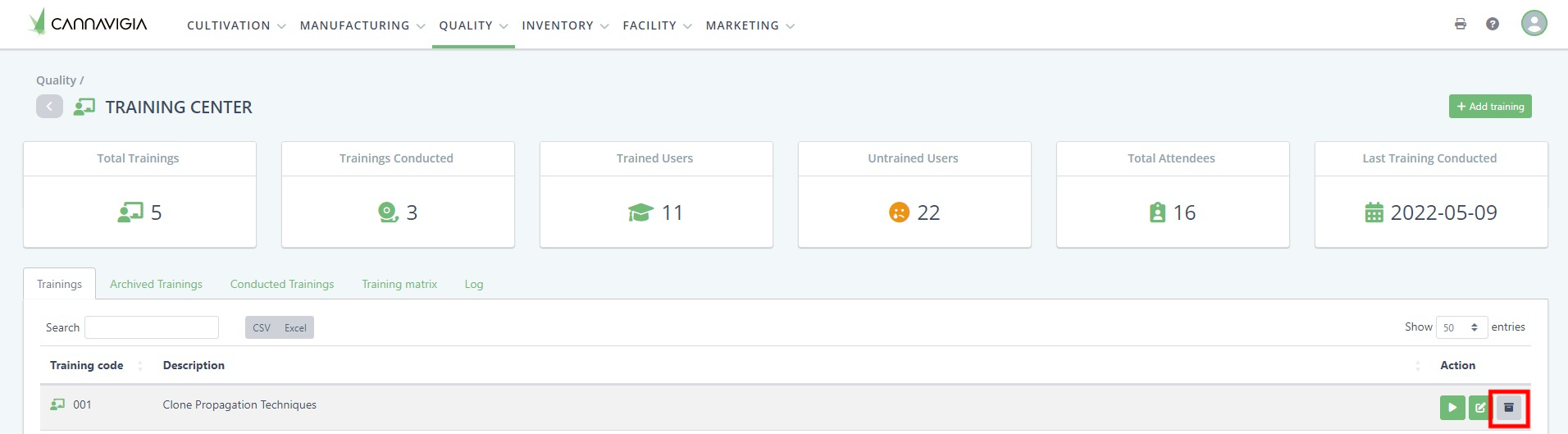
Click on the grey Archive button to archive the training
-
Confirm the archiving of the training by clicking OK
-
To restore a training, go to the Archive tab and click on the Restore button
Note: Archived trainings are still visible in the Archive tab in the Trainings page and can be restored at any time.
 Note: Archived trainings are still visible in the Archive tab in the Trainings page and can be restored at any time.