![CV_logo_horizontal_outline COPY.png]](https://support.cannavigia.com/hs-fs/hubfs/CV_logo_horizontal_outline%20COPY.png?height=40&name=CV_logo_horizontal_outline%20COPY.png)
⚠️ When selling, it must be ensured that subjects do not leave the point of sale with more than 10 grams of an unmixed cannabis product (cannabis flowers and cannabis resin). For this reason, several dispenses may not be carried out consecutively, which comprise a total of more than 10 grams.
5.1 Authenticating Participants and Submitting
5.1.1 "Home" (1) or "Submissions" (2) > "Add" (3) or "Start Submission" (4)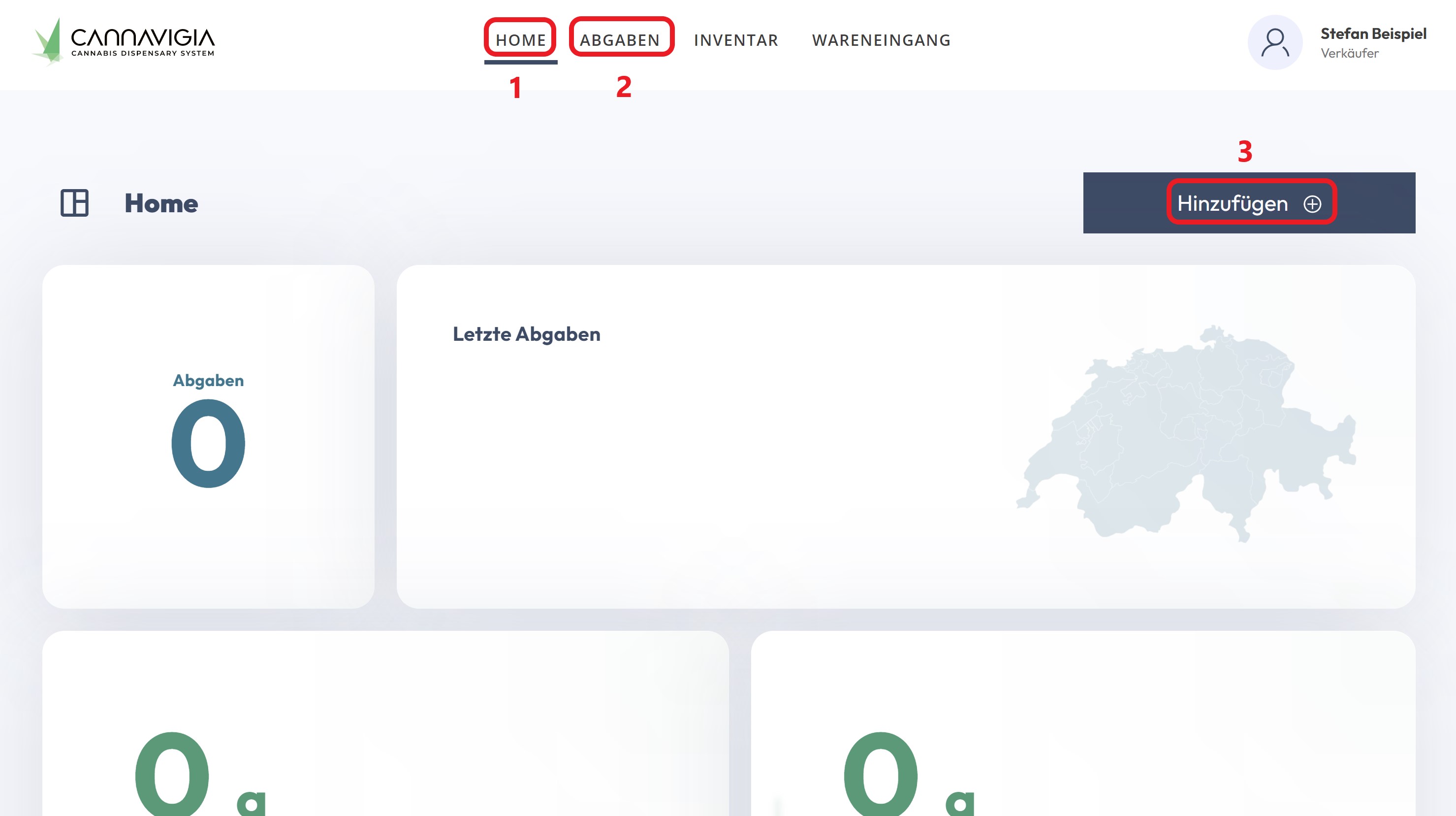
5.1.2 Scan the participant's QR code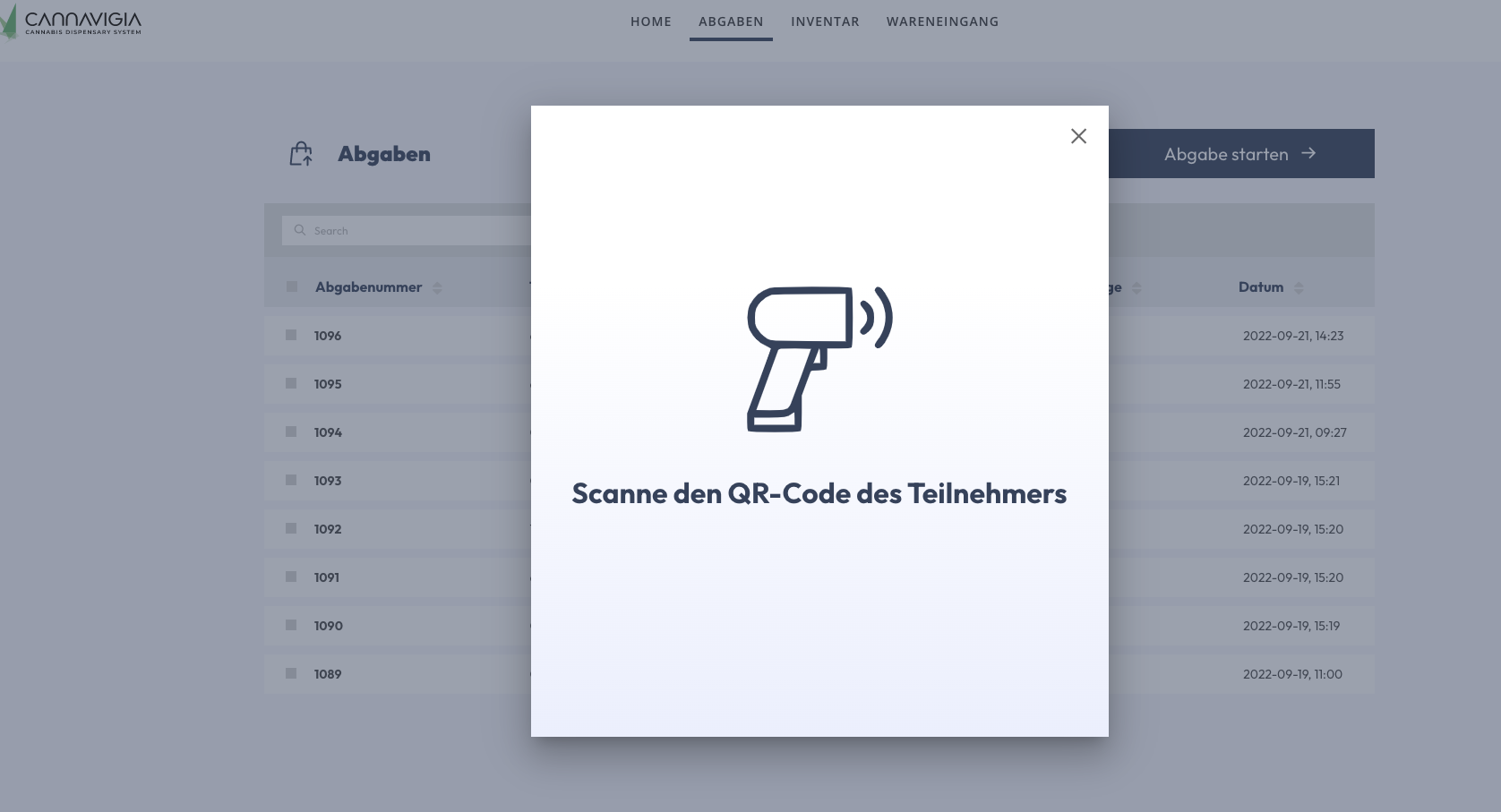
5.1.3 Check whether the passport number displayed matches the actual passport number of the test subject.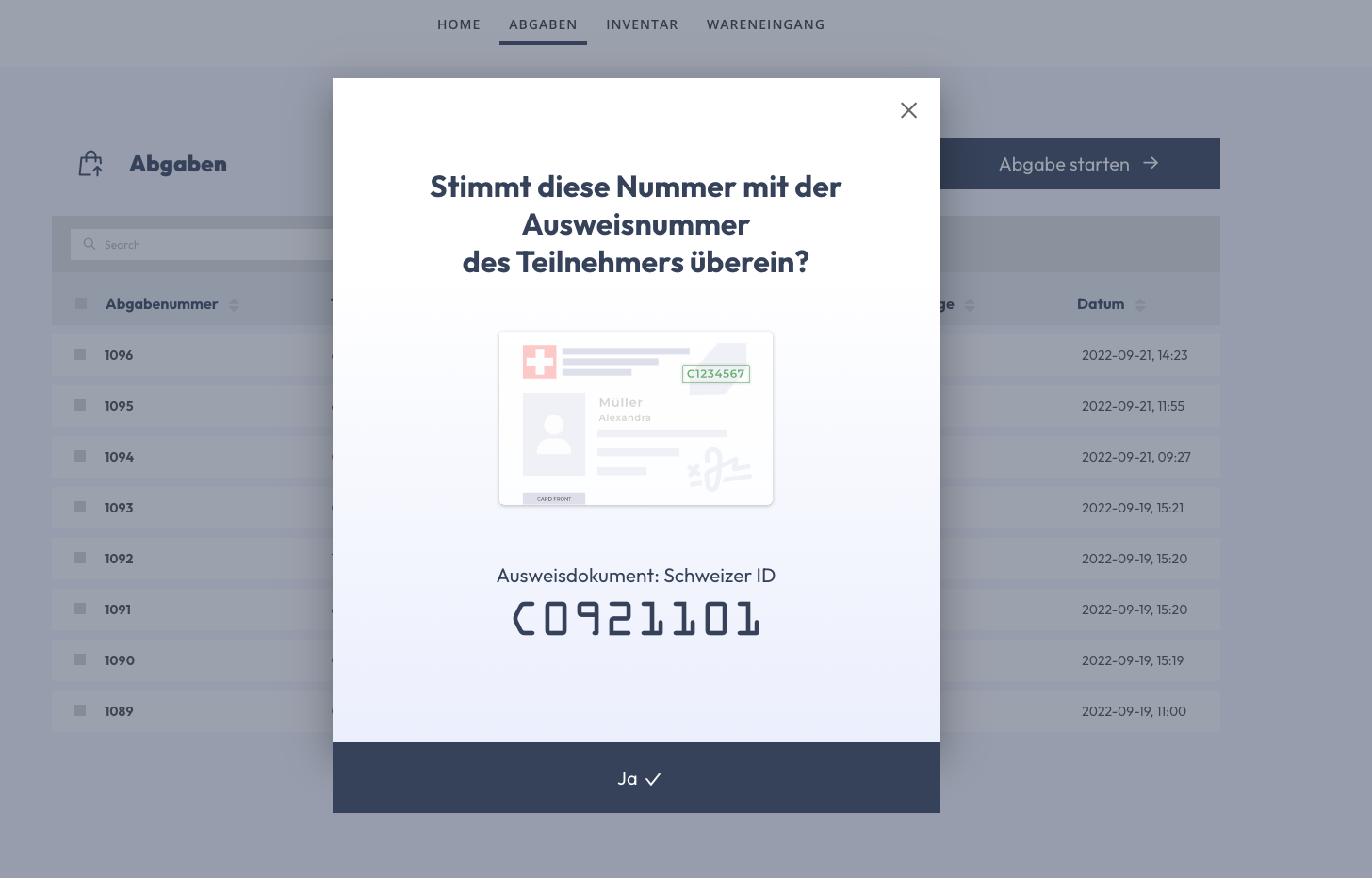
If the number on the physical identification document (Swiss ID, Swiss passport, foreigner's ID) matches the number on the screen, click "Yes".
If the numbers do not match, it is not possible to submit them. Cancel the process by clicking on "X".
5.1.4 Display "Submission History"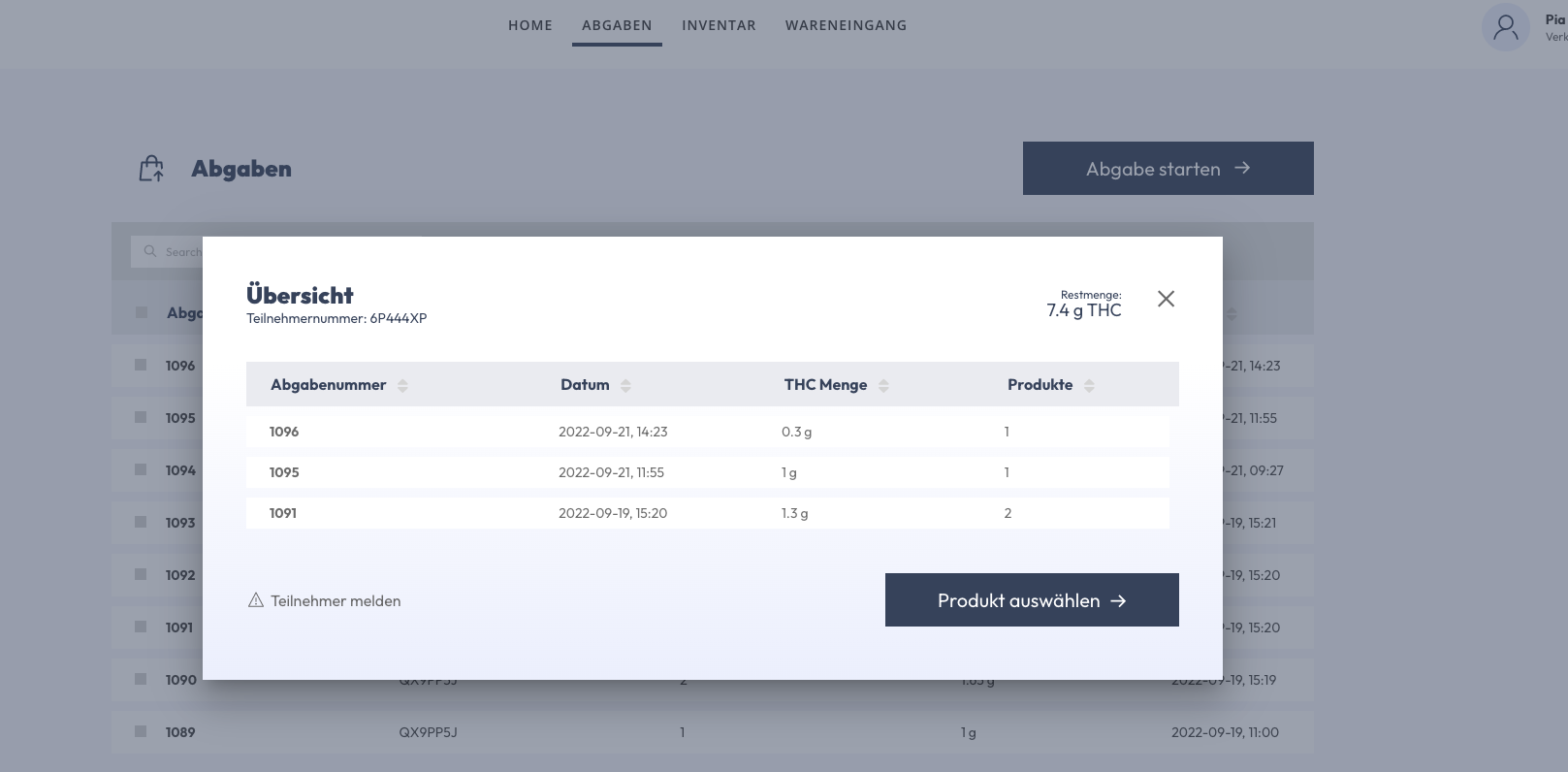
Shows a participant's past purchases. Clicking on a submission number opens the corresponding receipt.
The monthly remaining amount of THC (g) is shown in the top right. If the remaining quantity = 0, no dispensing can take place. Cancel the process by clicking on "X".
5.1.5 Select Product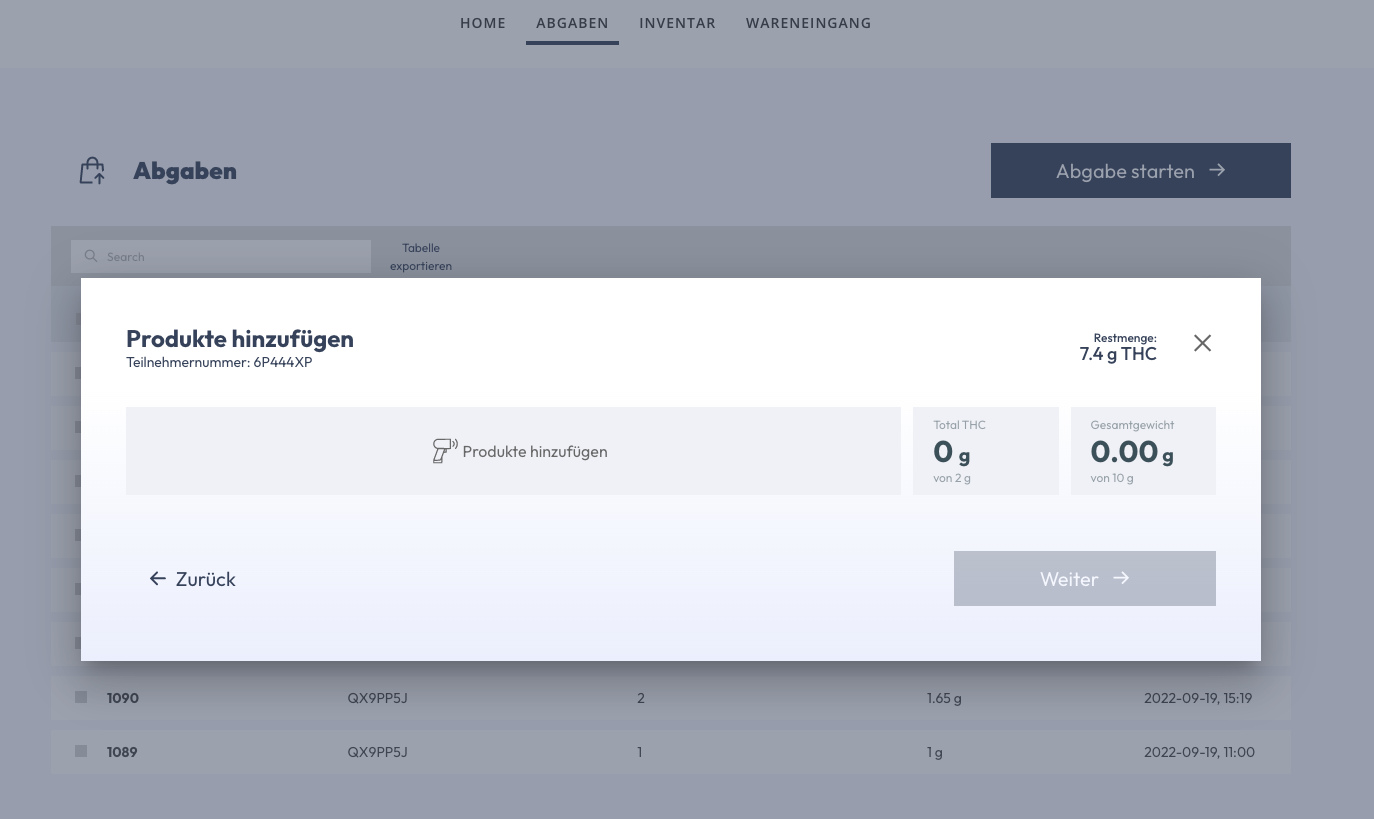
a. Scan barcode on the product
b. Scan QR code with the serialized packaging number 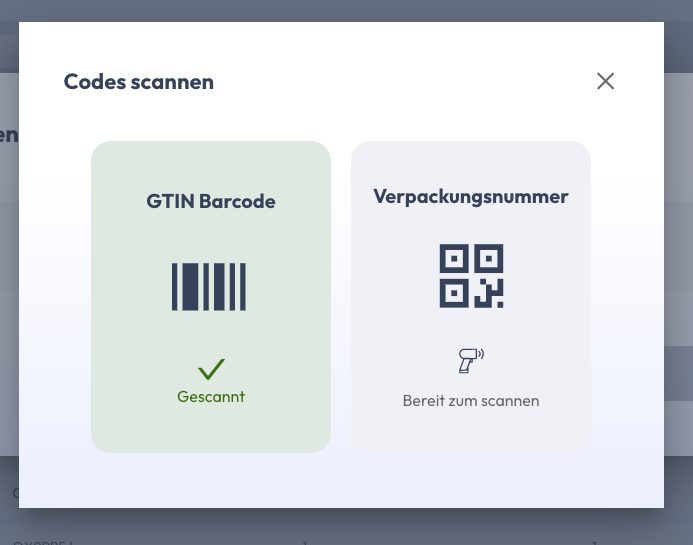
c. Select the batch number indicated on the item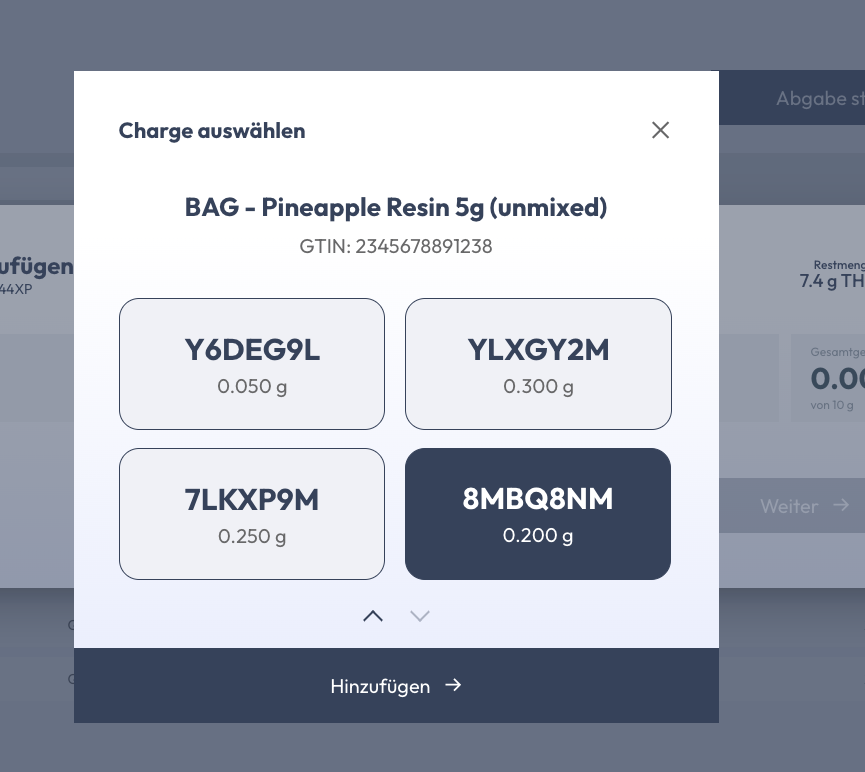
d. Add more products or click "Continue"
e. To remove a product from the list, click on "x"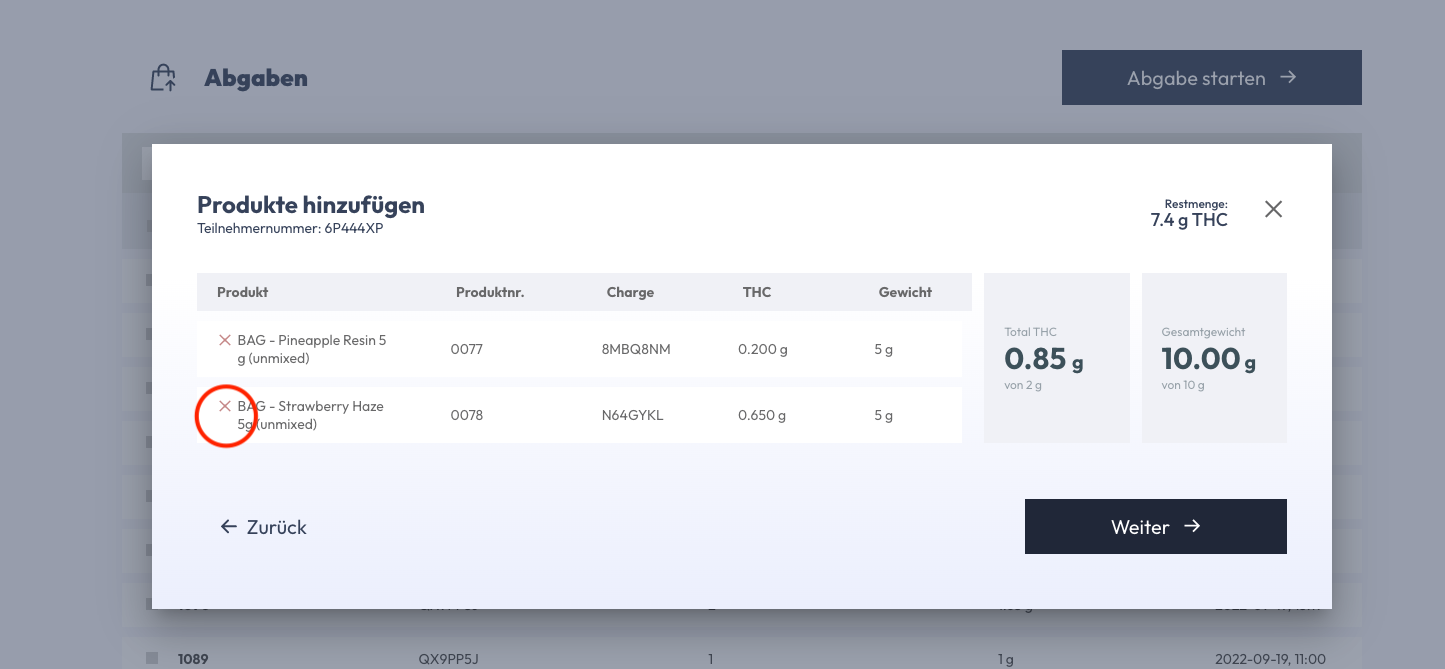
f. Products exceed delivery limits:
Either remove the product or cancel the submission by clicking on "X".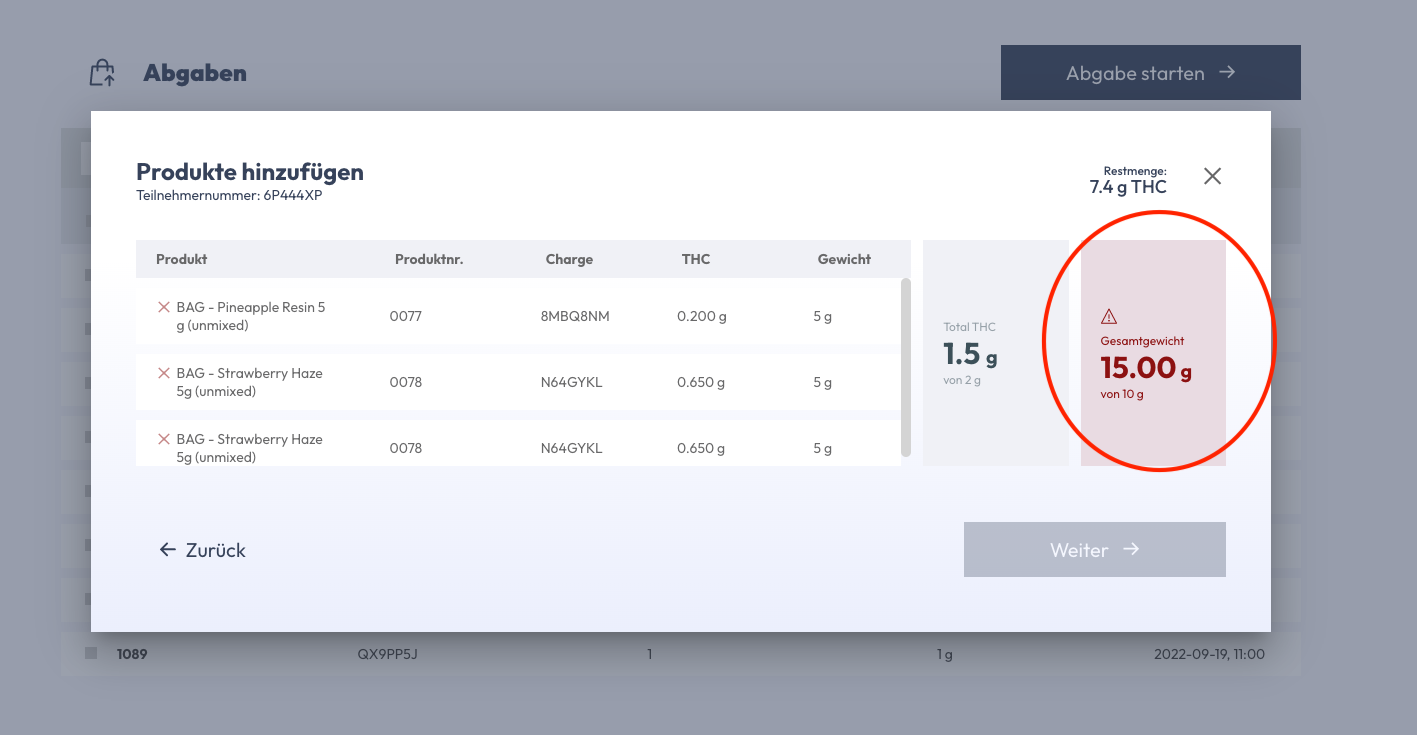
ℹ️Limited dispensing quantity
If the amount to be dispensed exceeds either the maximum weight or the maximum amount of THC per dispensing (2g), a corresponding warning message appears.
5.1.6 Product overview, payment confirmation and receipt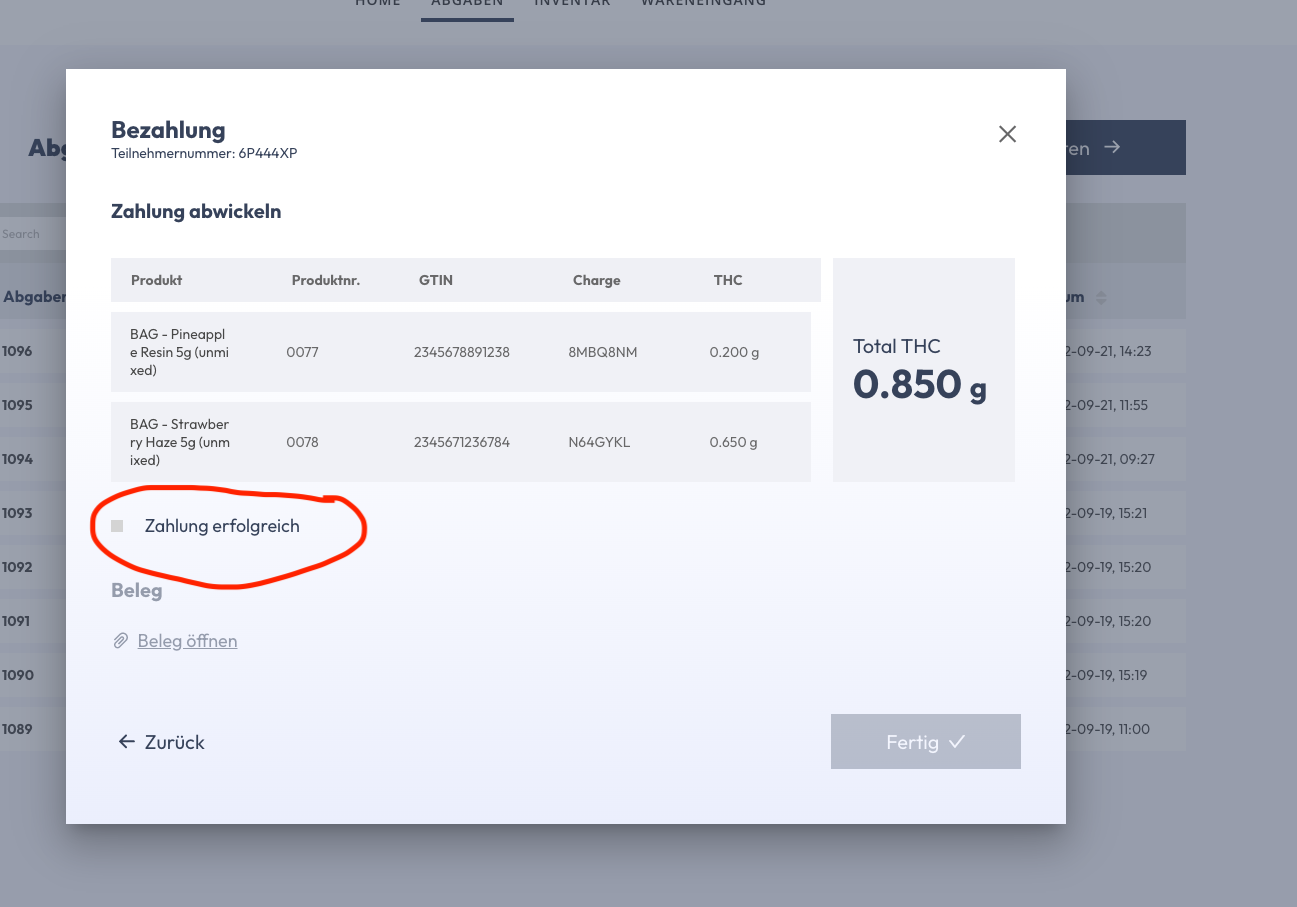
Once the payment has been successfully made in the POS system of the drop-off point, the drop-off can be completed in Cannavigia.
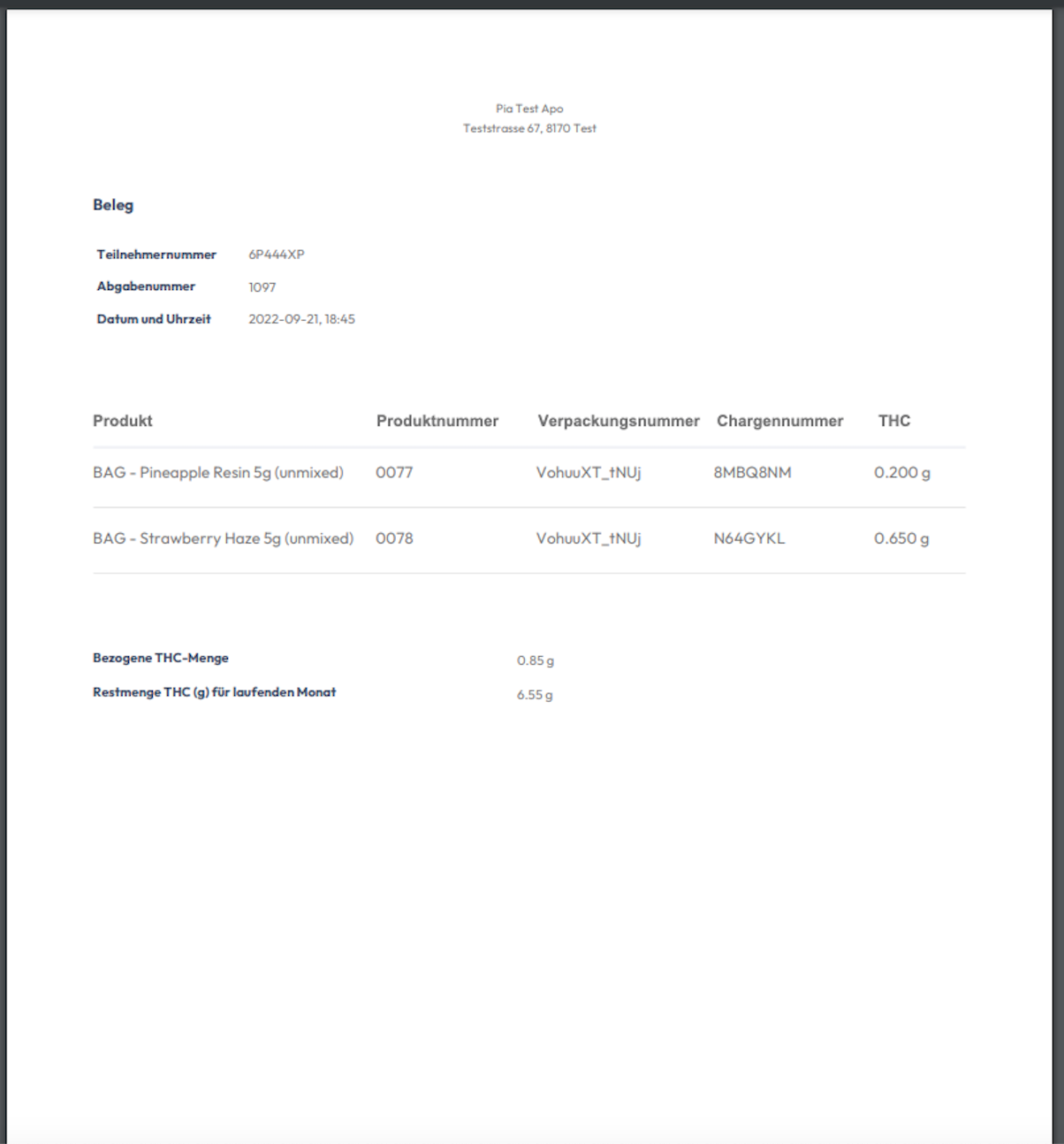
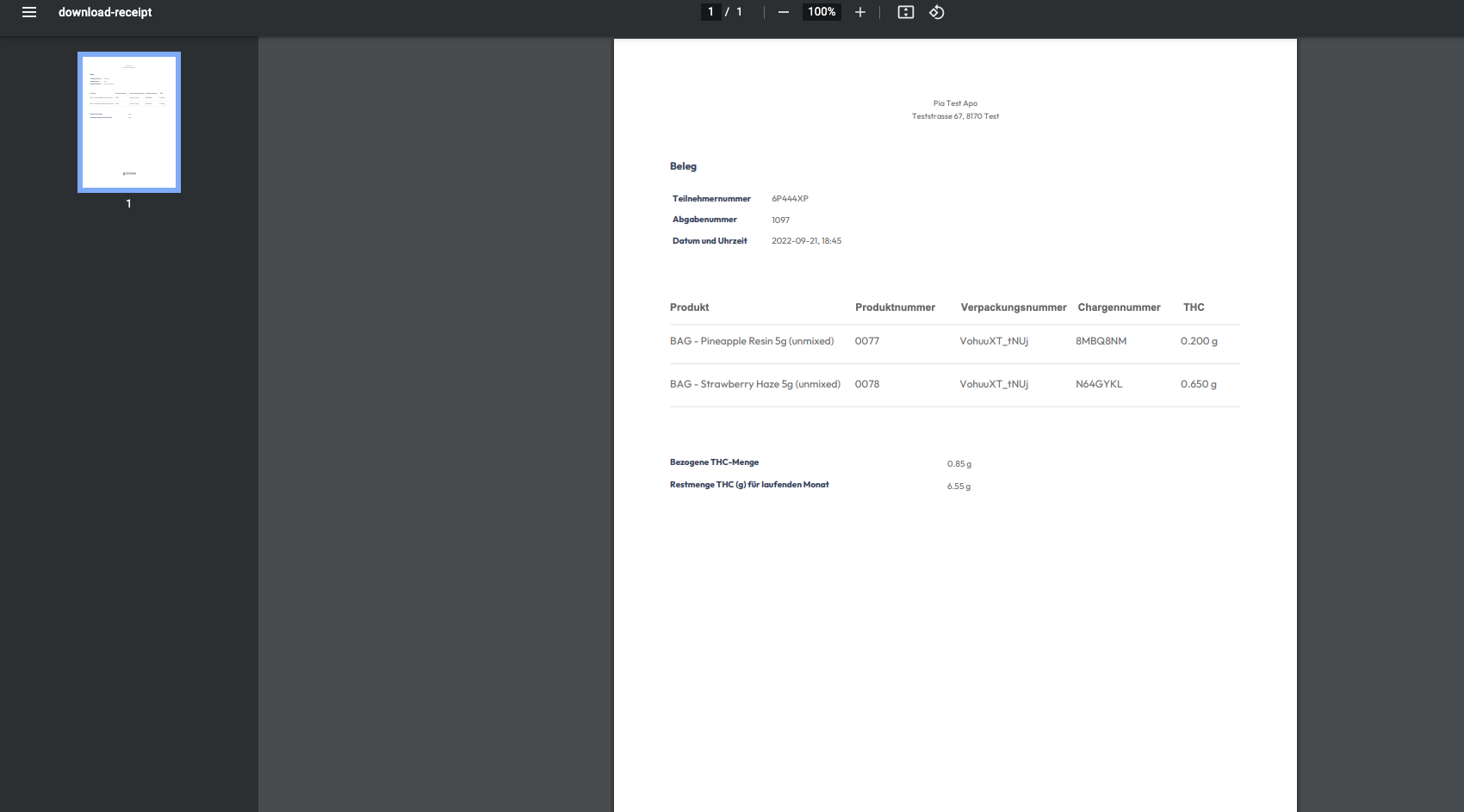
After confirming the successful payment, it is possible to print out a receipt for the participant. Click on "Open receipt".
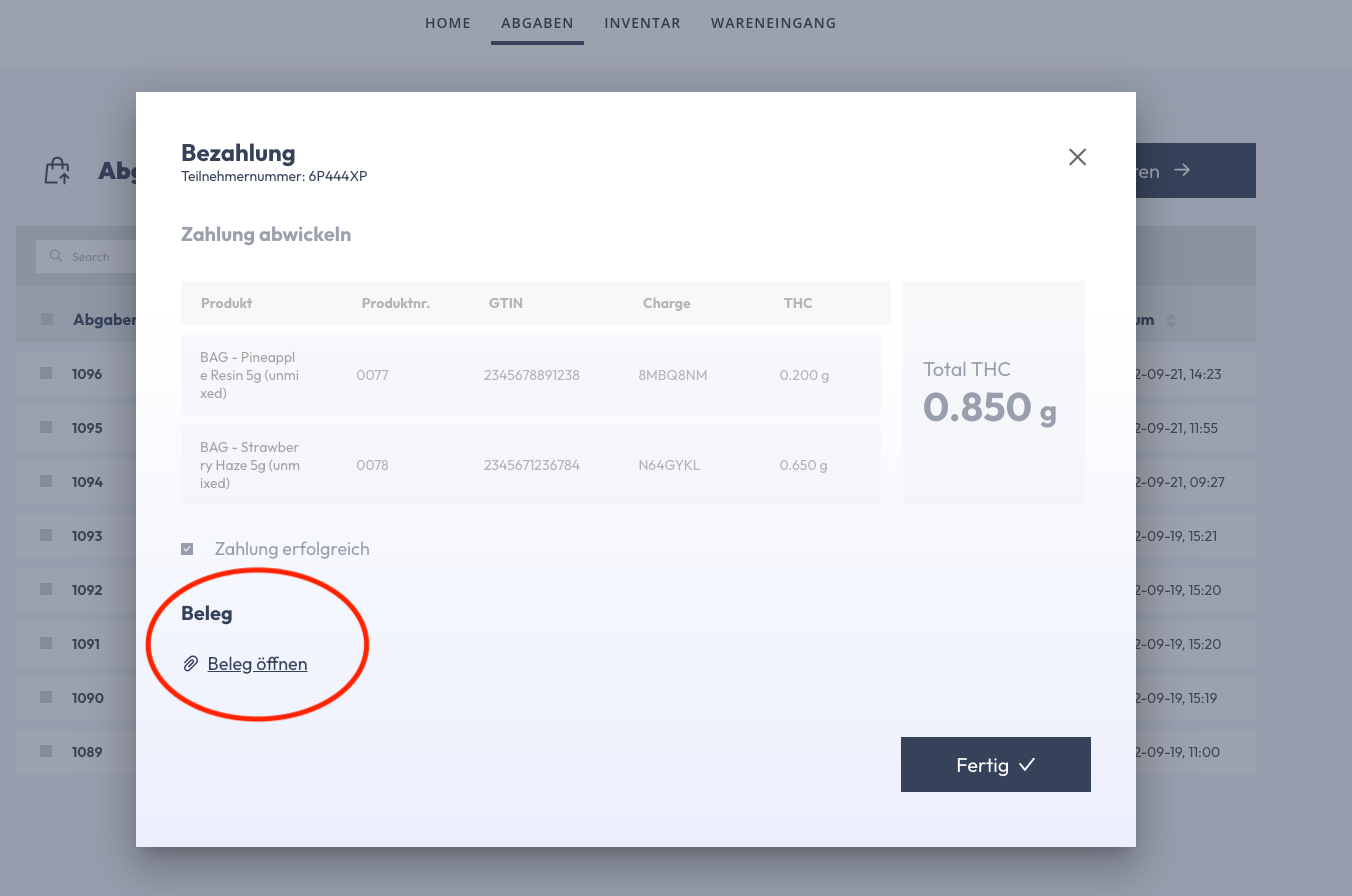
A separate browser window opens with the receipt. Can be downloaded and/or printed as a PDF.
5.1.7 Complete Submission
Click on "Done". The latest levy appears at the top of the list of levies.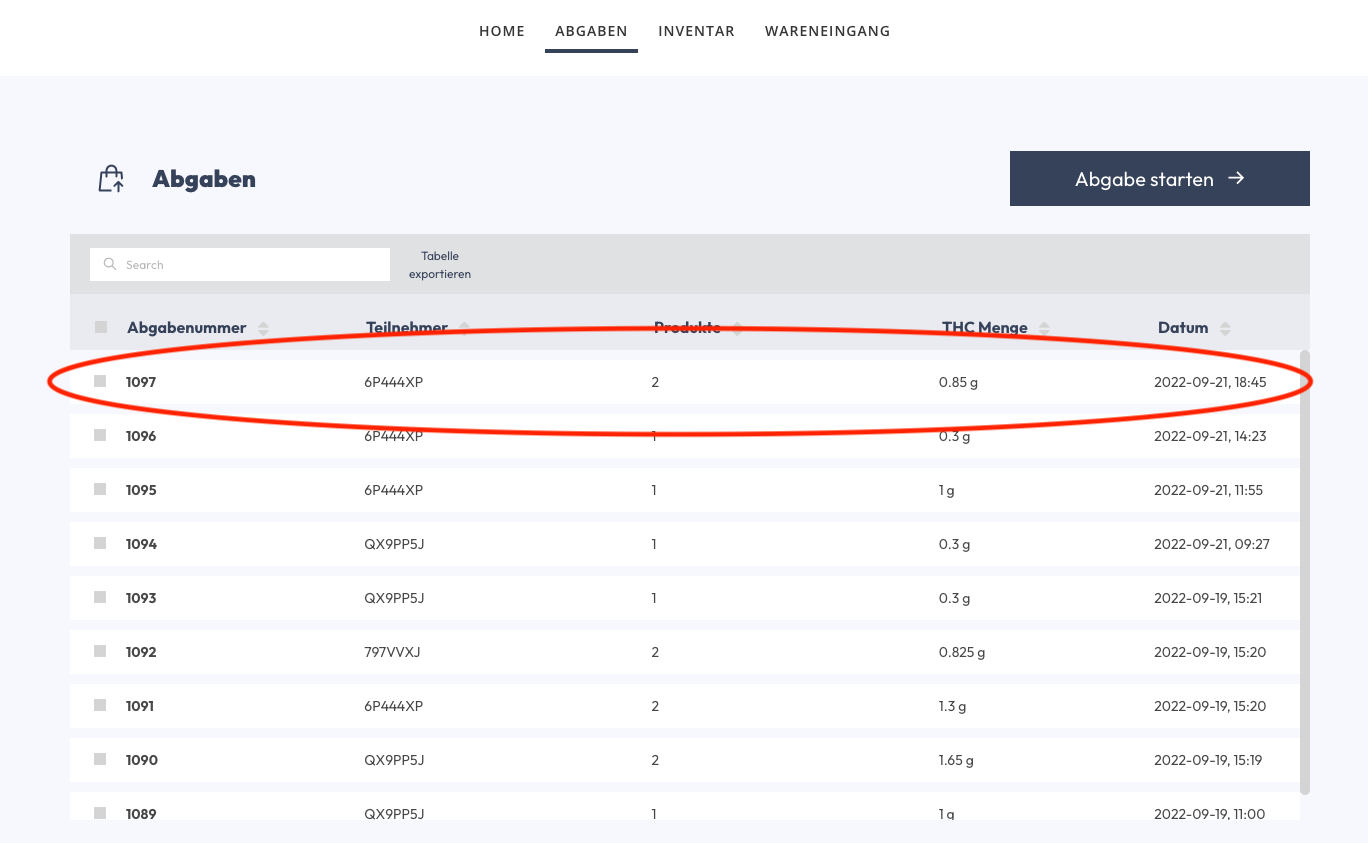
5.2 Cancelling a submission
- A delivery can only be cancelled within the month in which the purchase took place. A submission in February cannot therefore be cancelled in March.
- The last submission of a participant can be cancelled
- To cancel a submission, the participant badge must be scanned.
- To cancel an item with a serialized package number, the package number must be scanned.
- A submission can be cancelled partially (individual items) or completely
There may be times when an item or an entire submission needs to be canceled. Possible reasons:
- After the purchase has been made, the participant wants to exchange an item
- By mistake, the participant was sold the wrong product and must be exchanged
- The submission was stored in the system before payment was made. Participant cannot pay and the submission must be cancelled accordingly in the system.
5.2.1 To cancel a submission, click on "Submissions" > "Cancel submission"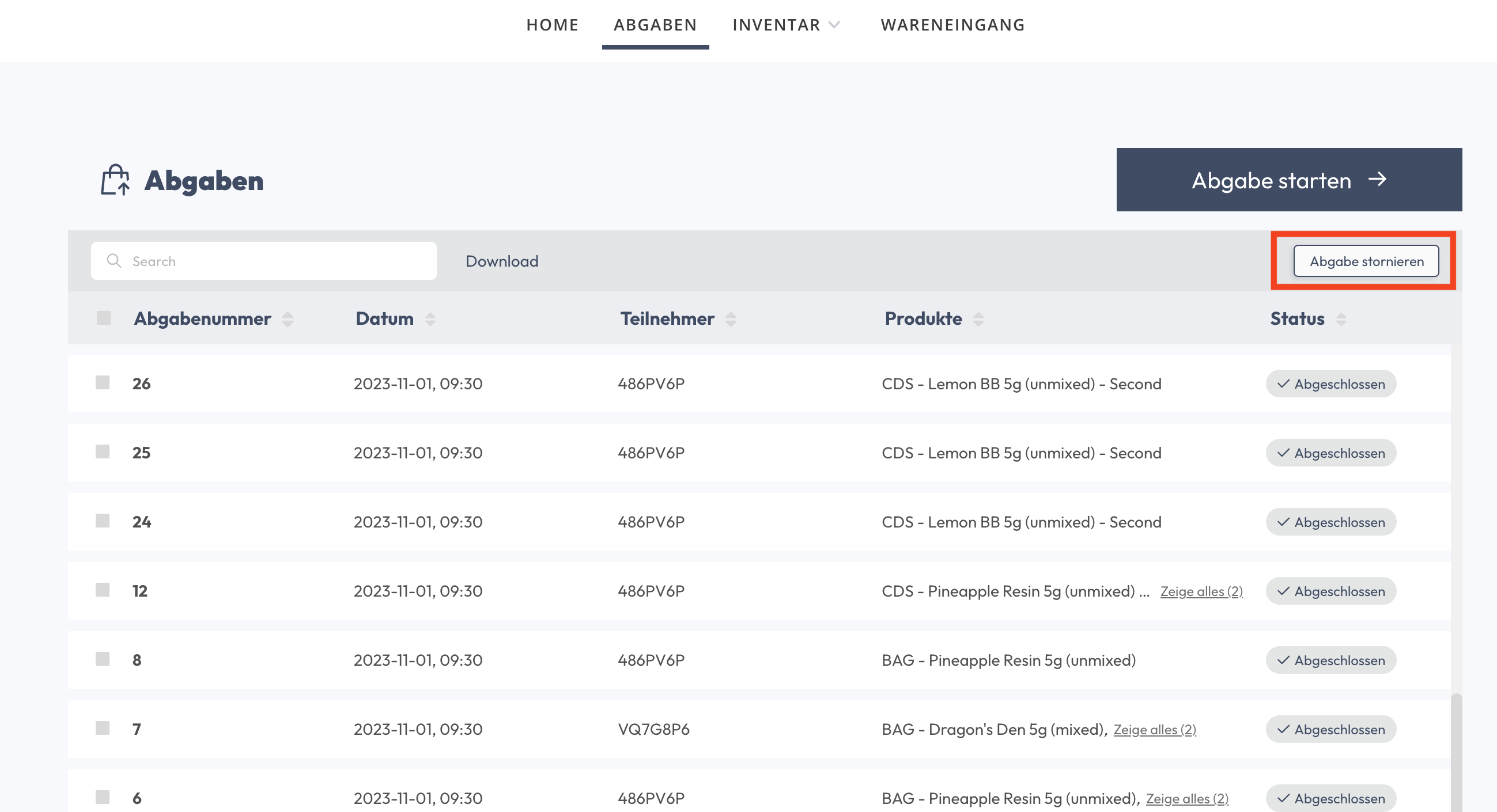
5.2.2 Scan the attendee badge
5.2.3 Select the items you want to cancel and click "Cancel Item"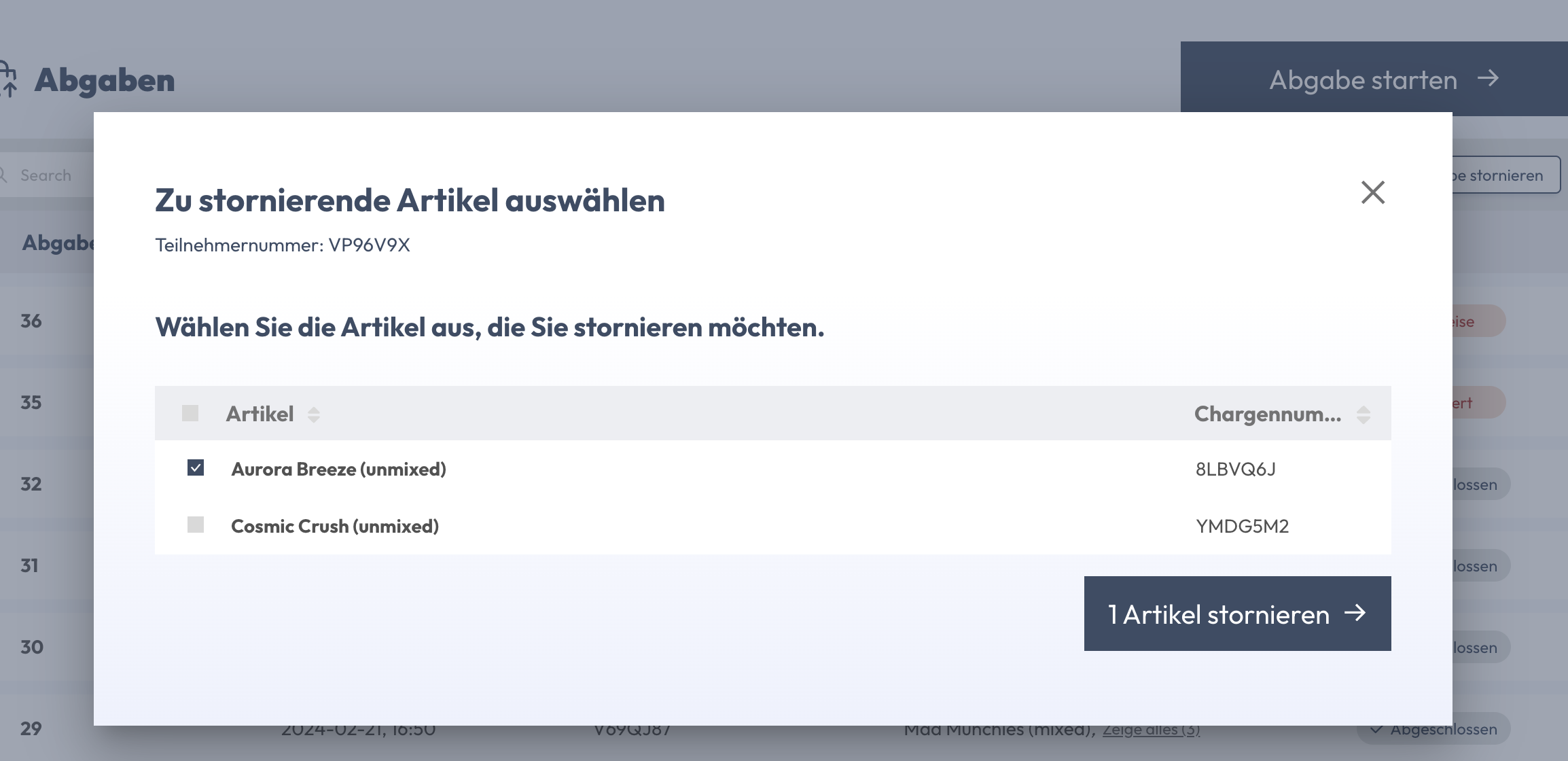
For items with serialized package numbers, scan the packaging (QR codes) of the items you want to cancel. Click on "Cancel item" 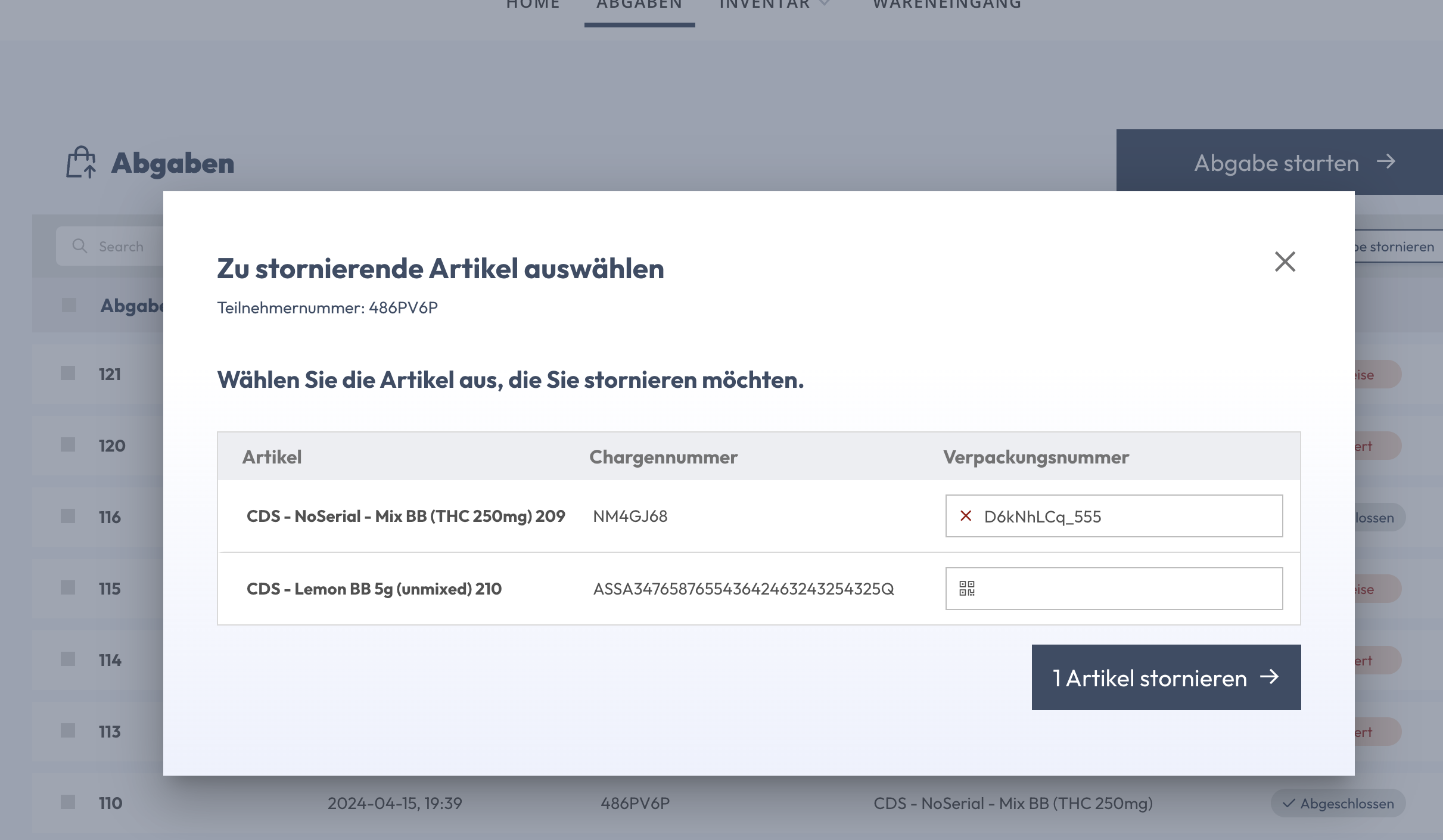
5.2.4 Provide a reason for cancellation and click "Confirm"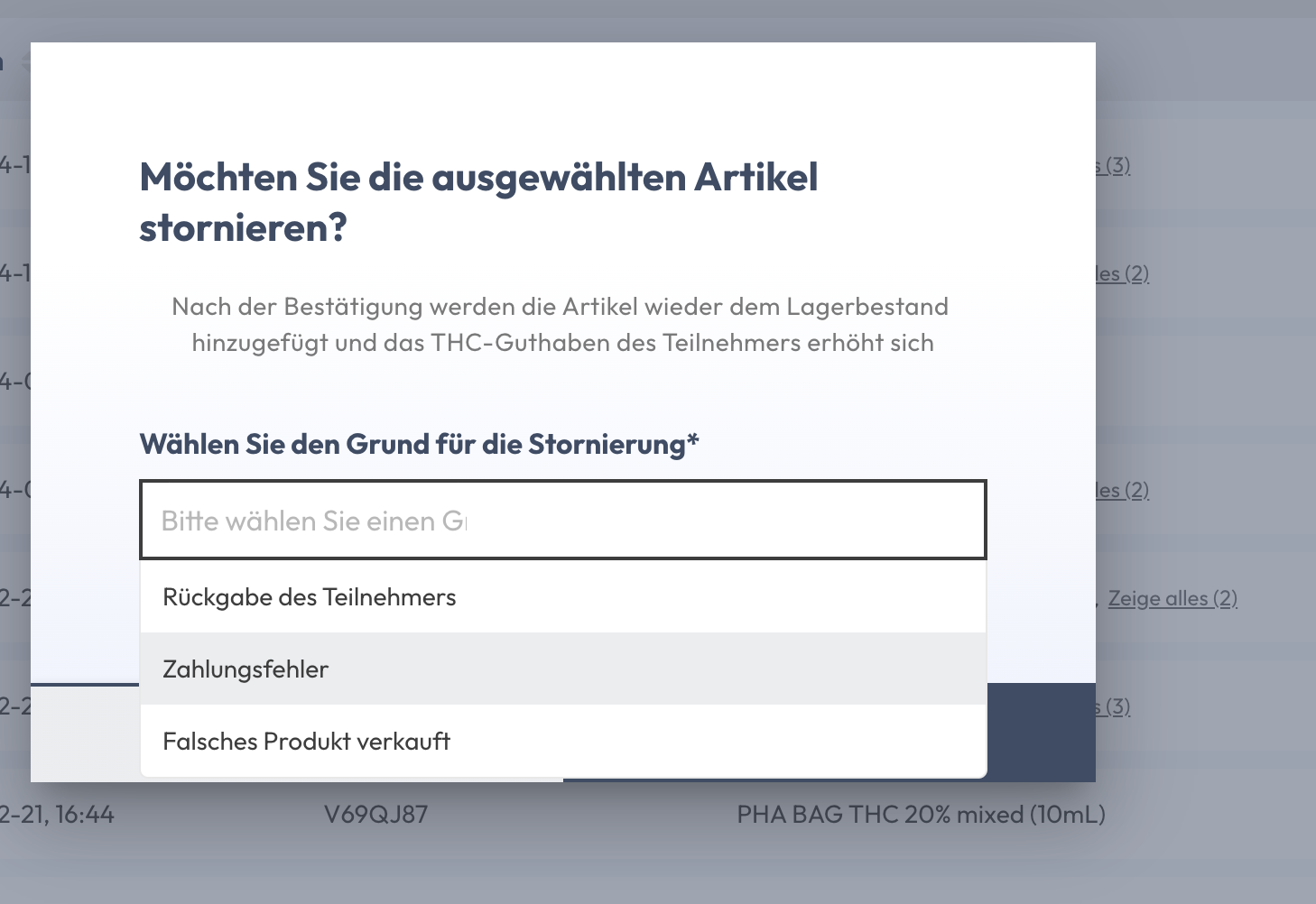
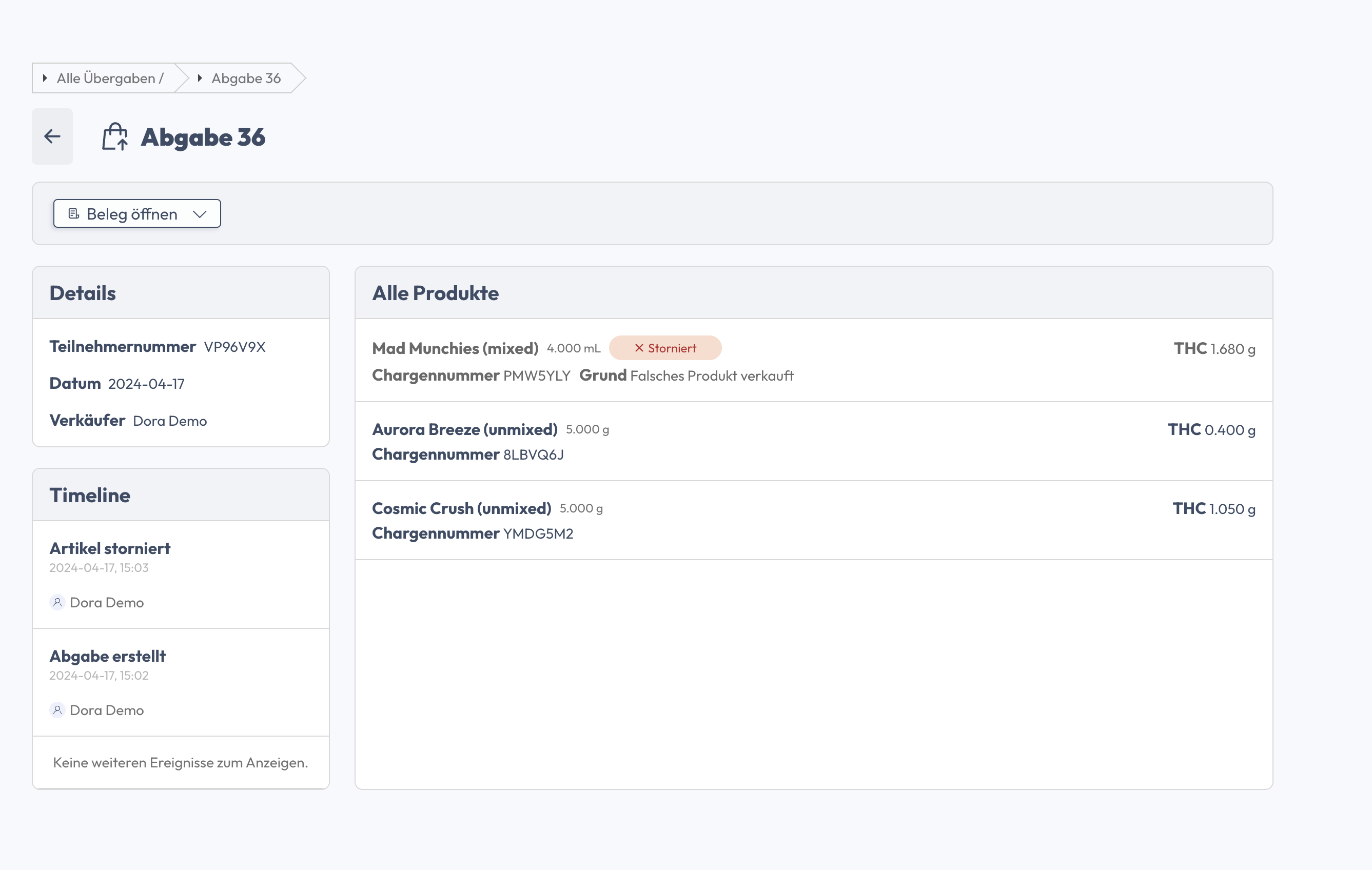
5.2.5 After cancellation
- Cancelled items will be charged back and will be available for sale again
- The participant's remaining monthly THC (g) will be increased again
- The details of the cancellation can be viewed by clicking on the delivery number
Click on "Open receipt" to open both the submission and cancellation receipts (PDF)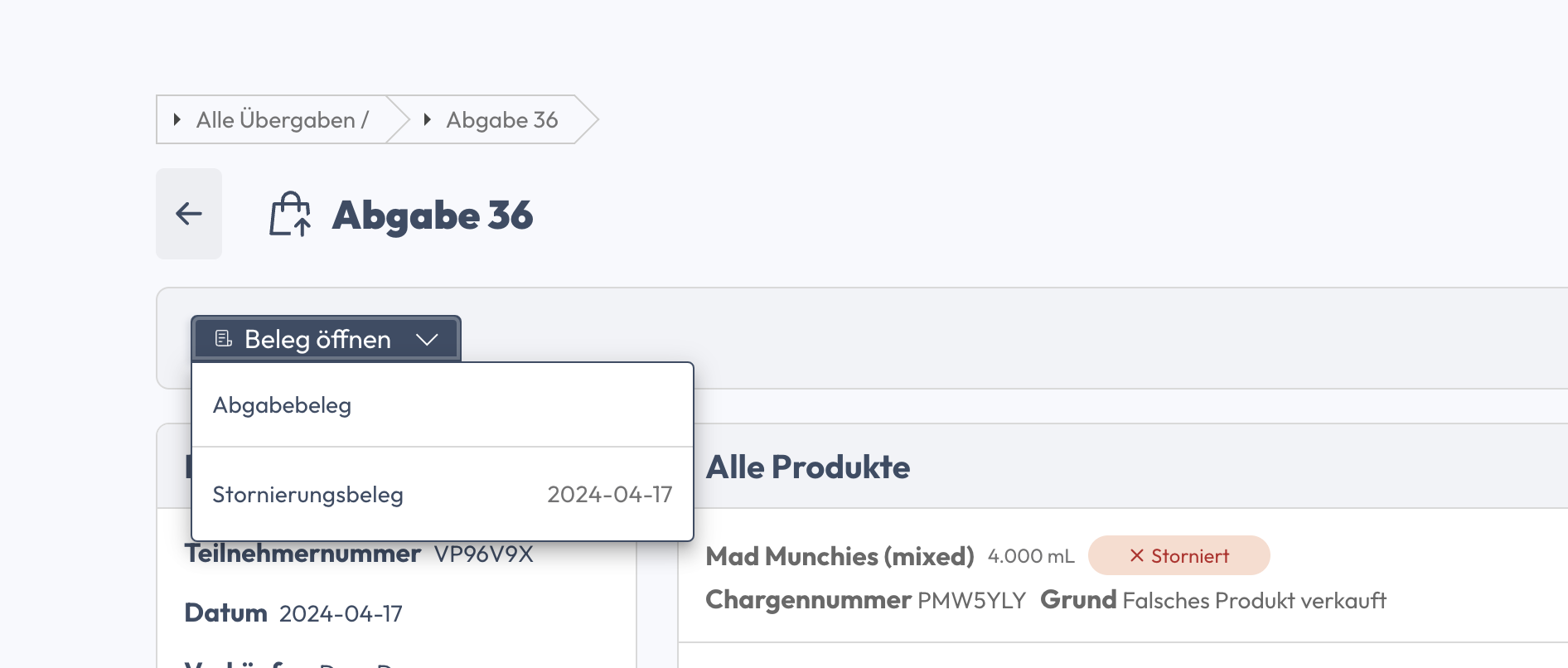
5.3 Report an incident
ℹ️ The study management determines whether this functionality is available to the reference points.
⚠️ This functionality requires that an email service is installed on the device used (PC, Mac, tablet, etc.).
Scan participant QR code > overview > "Report participant"
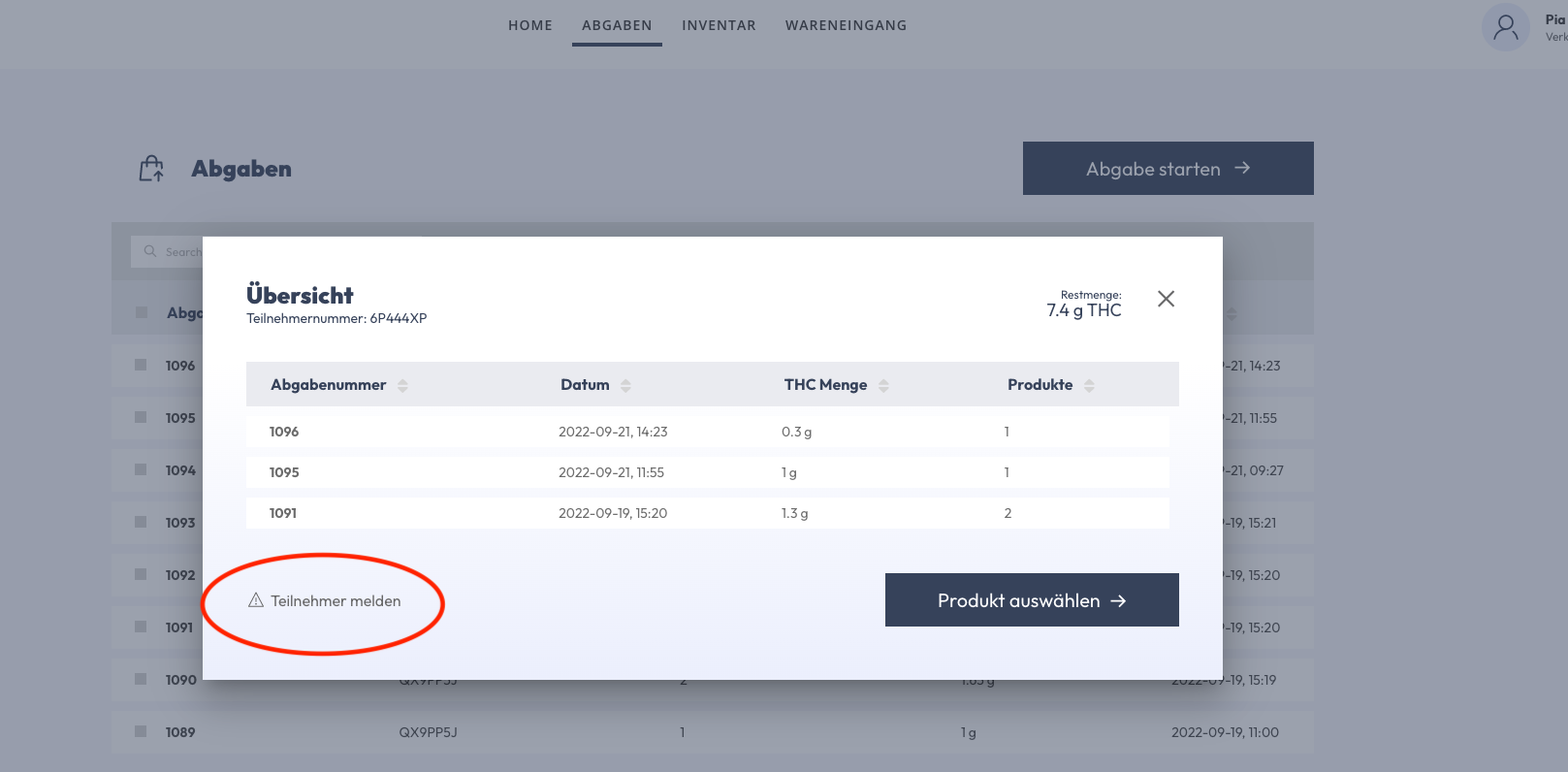
The e-mail service opens. Participant number is automatically displayed in the "Subject".
5.4 Evidence
"Taxes" > clicking on the submission number > receipt opens in a separate tab.