![CV_logo_horizontal_outline COPY.png]](https://support.cannavigia.com/hs-fs/hubfs/CV_logo_horizontal_outline%20COPY.png?height=40&name=CV_logo_horizontal_outline%20COPY.png)
Follow the steps below to perform the Goods Receipt to receive your goods
3.1 "Home" (1) or "Goods receipt" (2) > "Add" (3) or "Post goods receipt" (4)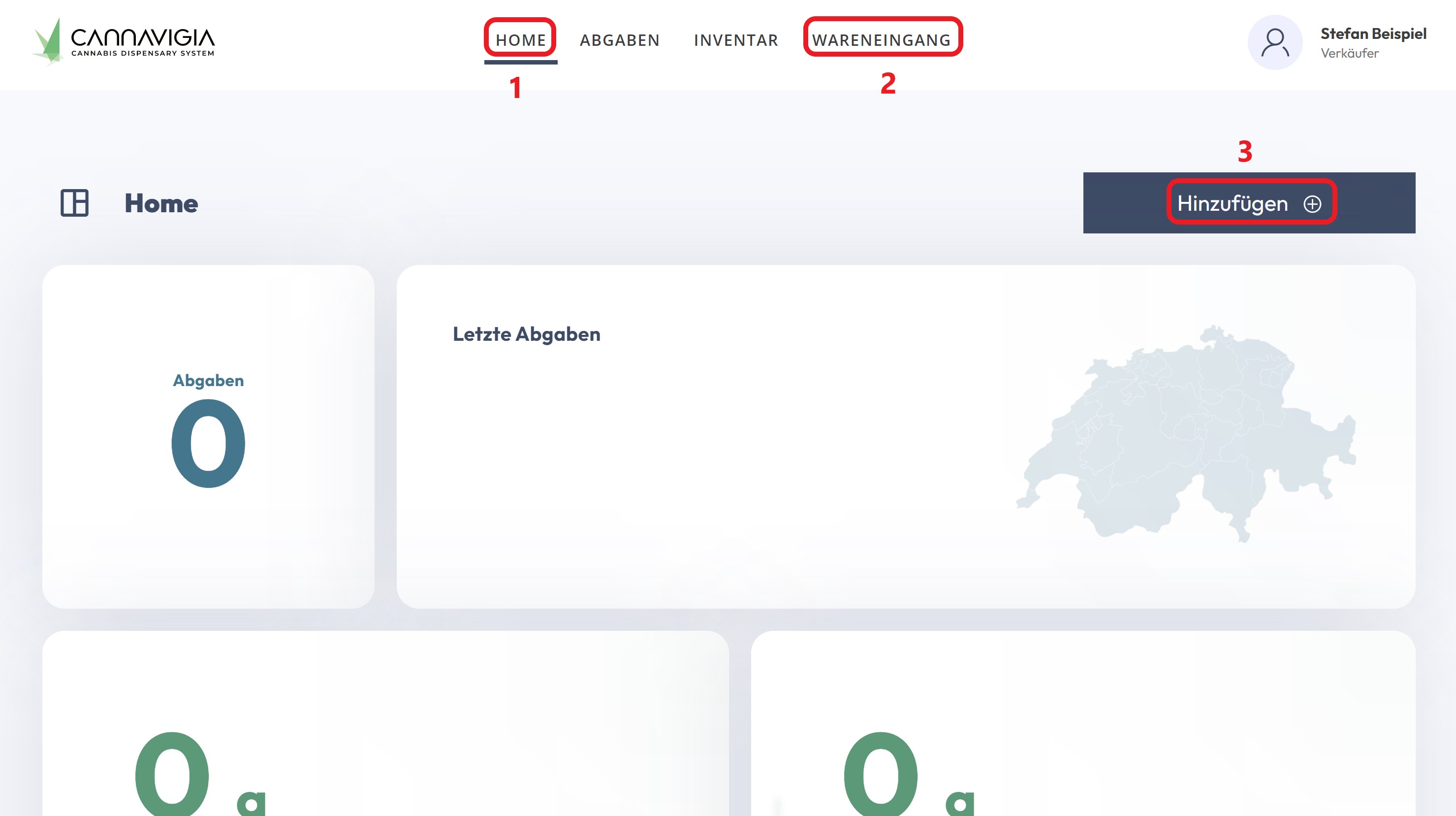
3.2 Scan the QR code on the delivery note
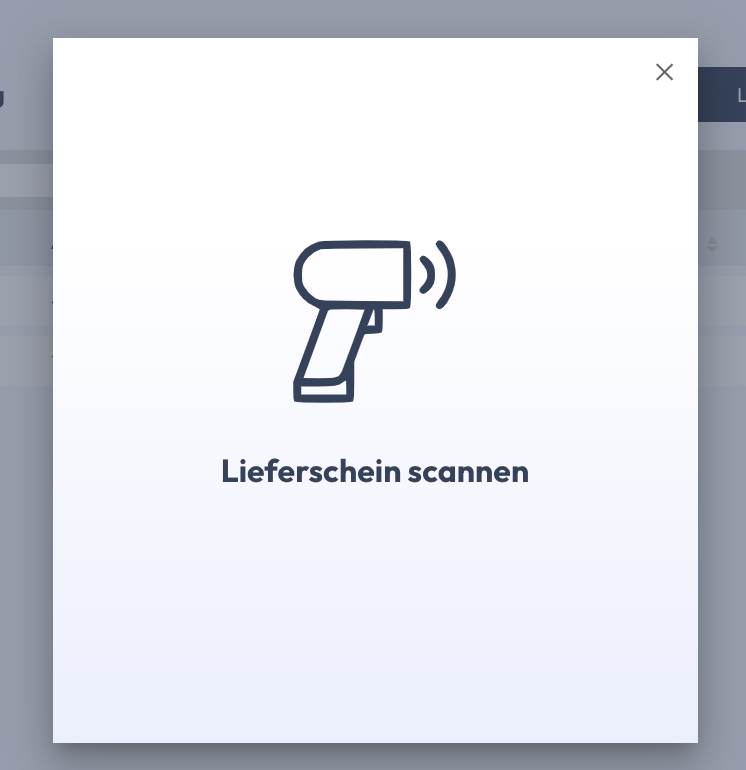
⚠️ Invalid QR code
In the event of an invalid QR code, a corresponding error message will appear. If you have any questions about how to do this, please consult the FAQs.
3.3 The delivery with the corresponding item data is displayed in the list of goods receipts.
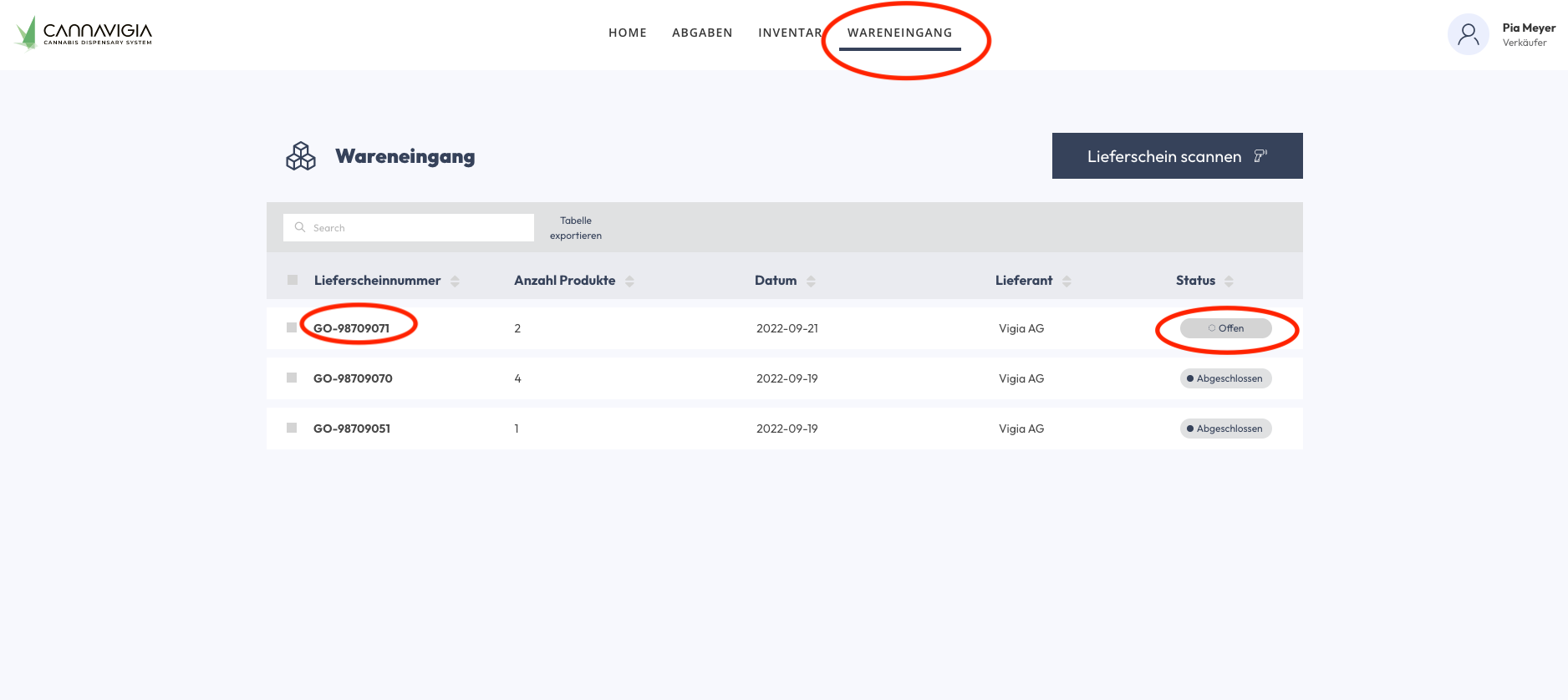
3.4 Select "Goods receipt" > delivery > "Add item"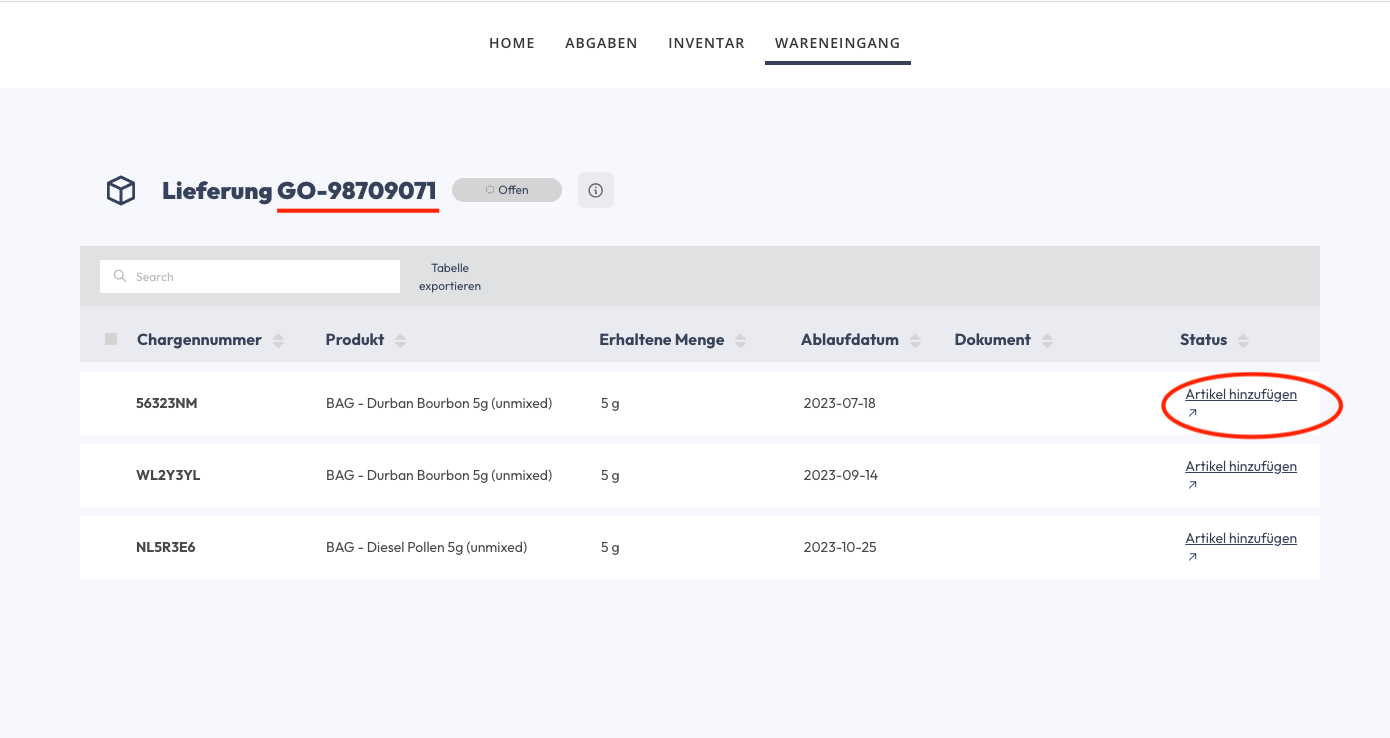
3.5 Enter the quantity received > "Add article"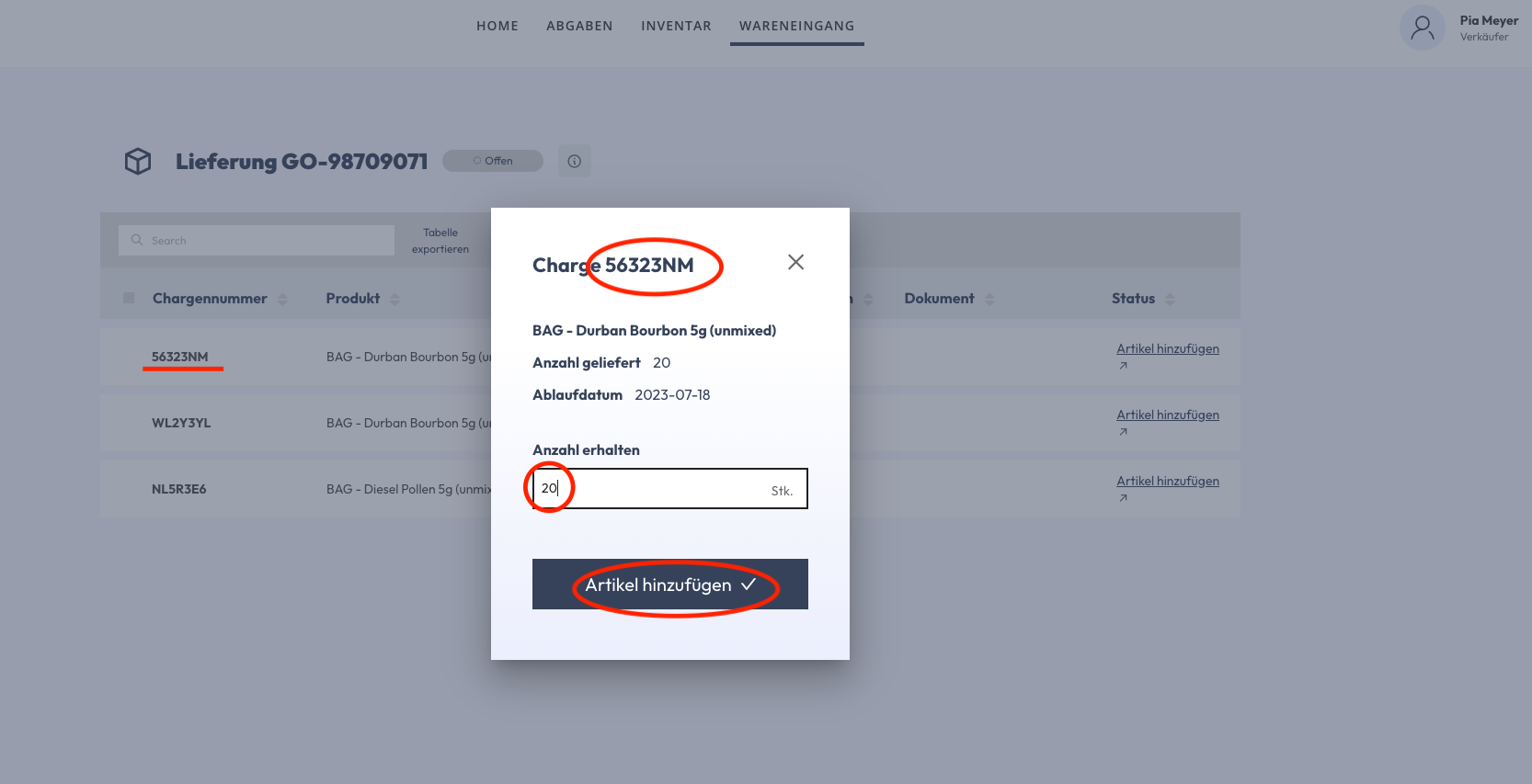
Status of this batch changes to "Acknowledged". If all batches have a status of "Acknowledged", the status of the delivery changes to "Completed". The delivery cannot be processed further.